Teacher Guide
Create assignments with AI, print or assign them, collect submissions (including handwritten ones via OCR) and read class / student reports.
Section 1
Signing in as a school teacher
Sign in on the school domain
Go to your school's domain (https://<school>.app.thinka.ai) and sign in with your school email — Continue with email → email → password → Log in. The steps are shown in detail in the Admin / Owner guide; they are the same for every role.
The teaching home
The sidebar has Home, Assignments, Bookmarks, Students, Classes. Home shows your recent assignments with submission counts, plus two live counters: Pending submission and Unchecked assignments.
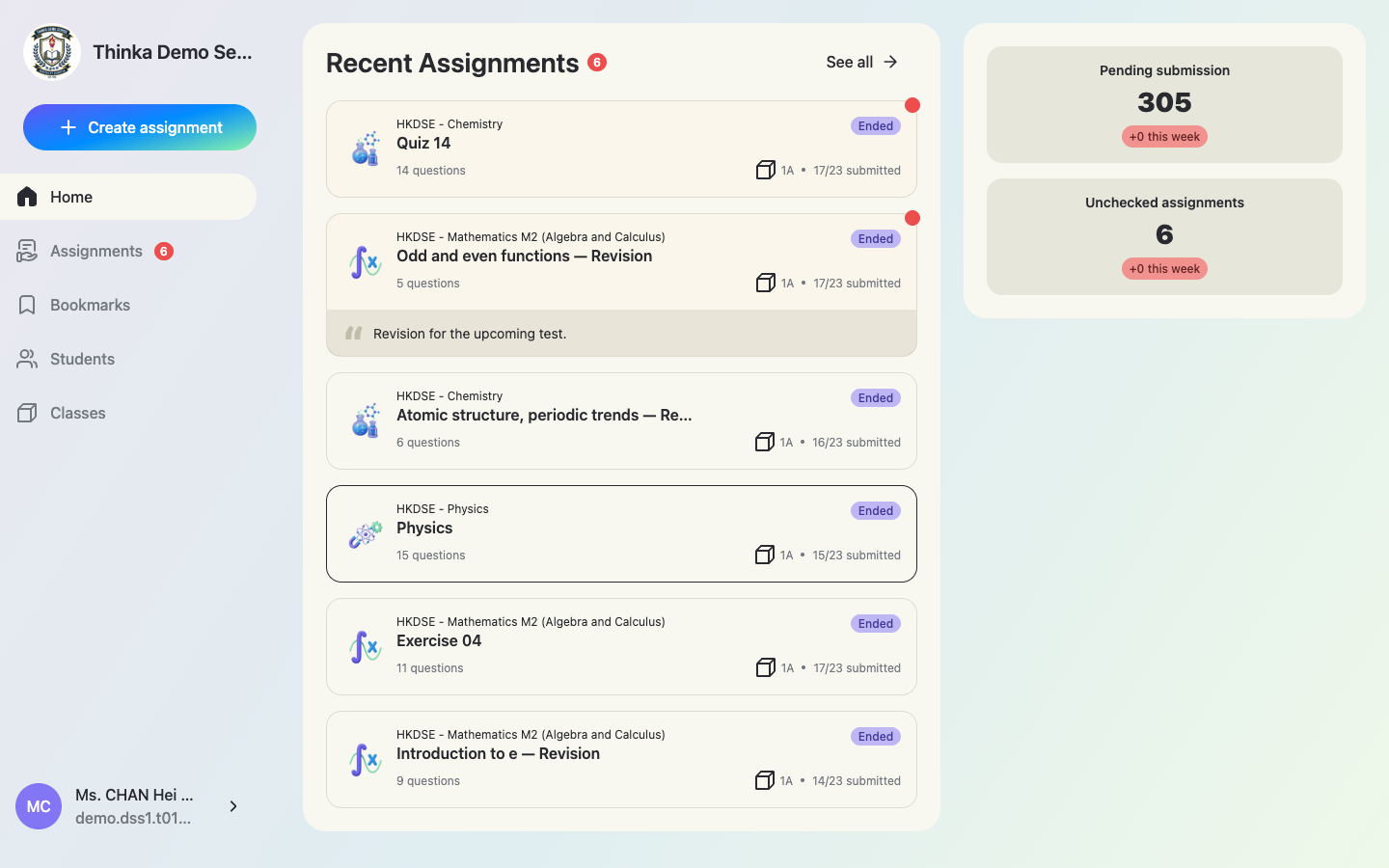
In a school workspace you see your own assignments plus assignments in your assigned subjects. If a colleague's assignment seems missing, check your subject assignment with your school admin.
Section 2
Create an assignment
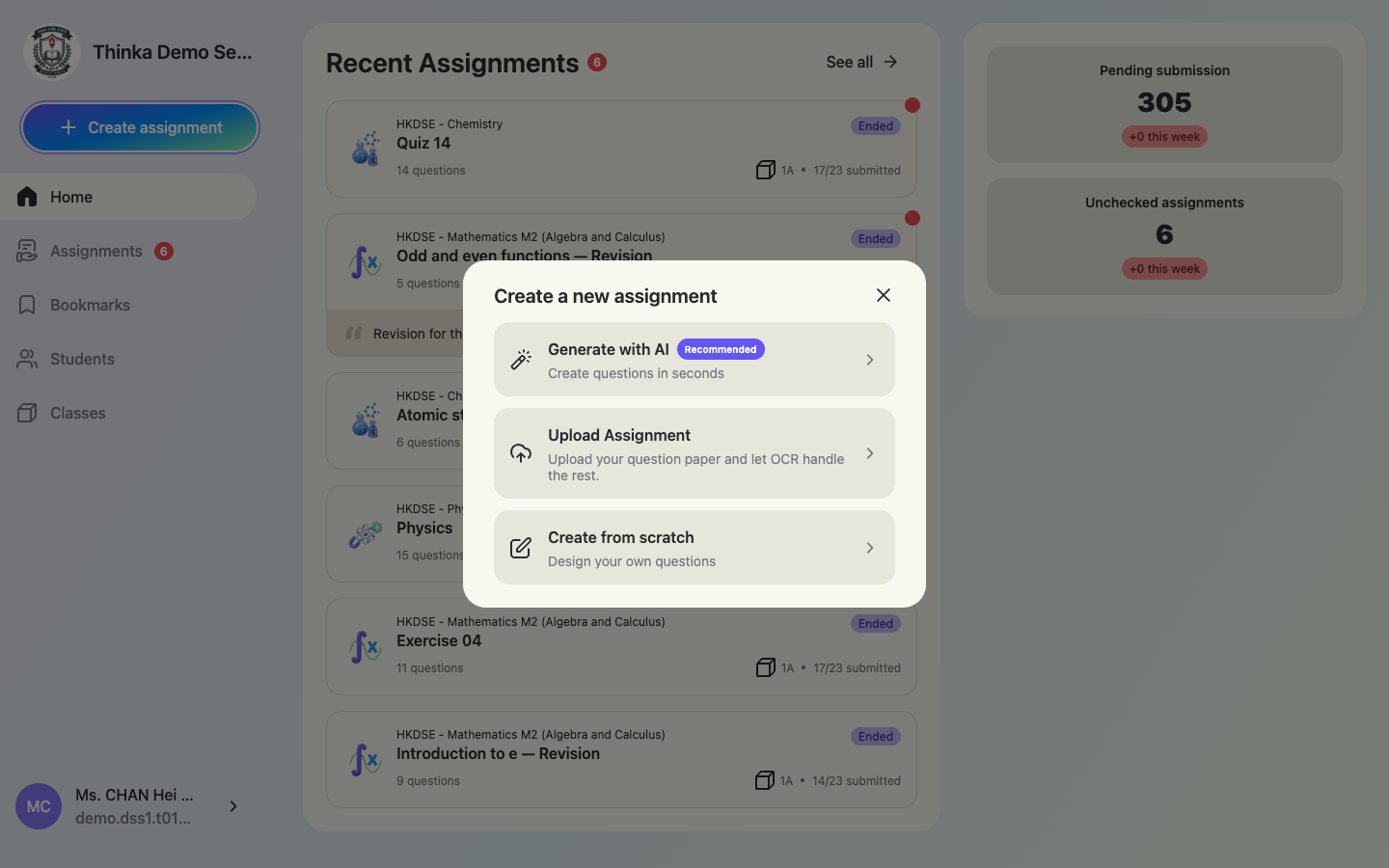
Click + Create assignment in the sidebar. There are three ways to create one.
Choose how to create
Generate with AI (recommended) creates questions in seconds. Upload Assignment turns your own question paper into an interactive assignment with OCR. Create from scratch lets you design every question yourself.
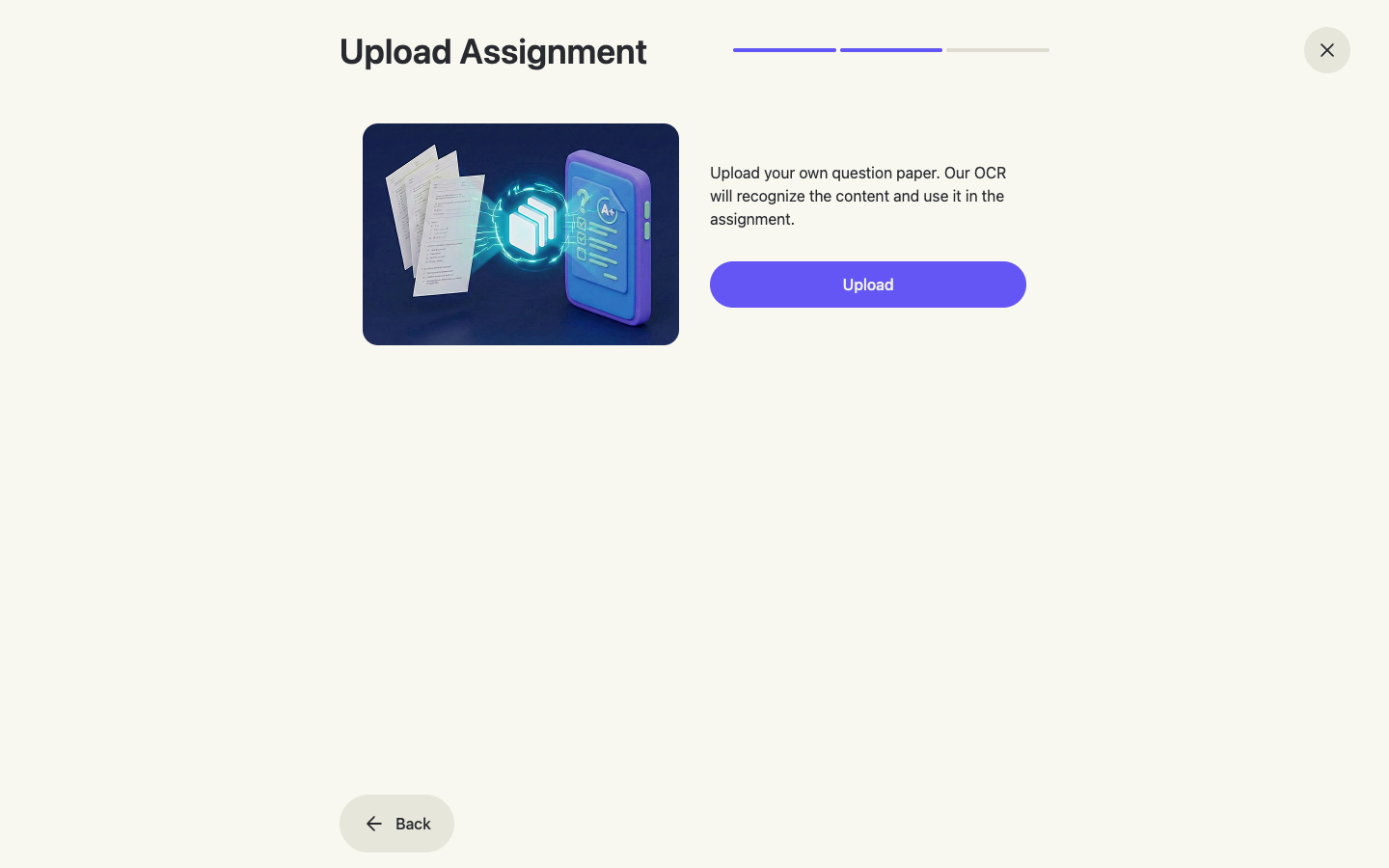
Option A — Upload your own question paper (OCR)
Choose Upload Assignment, pick the subject, then upload your existing paper (PDF, Word or photos). The system's OCR recognizes the content — questions, choices and formulas — and creates the questions for you, so worksheets you already use become interactive, auto-graded assignments.
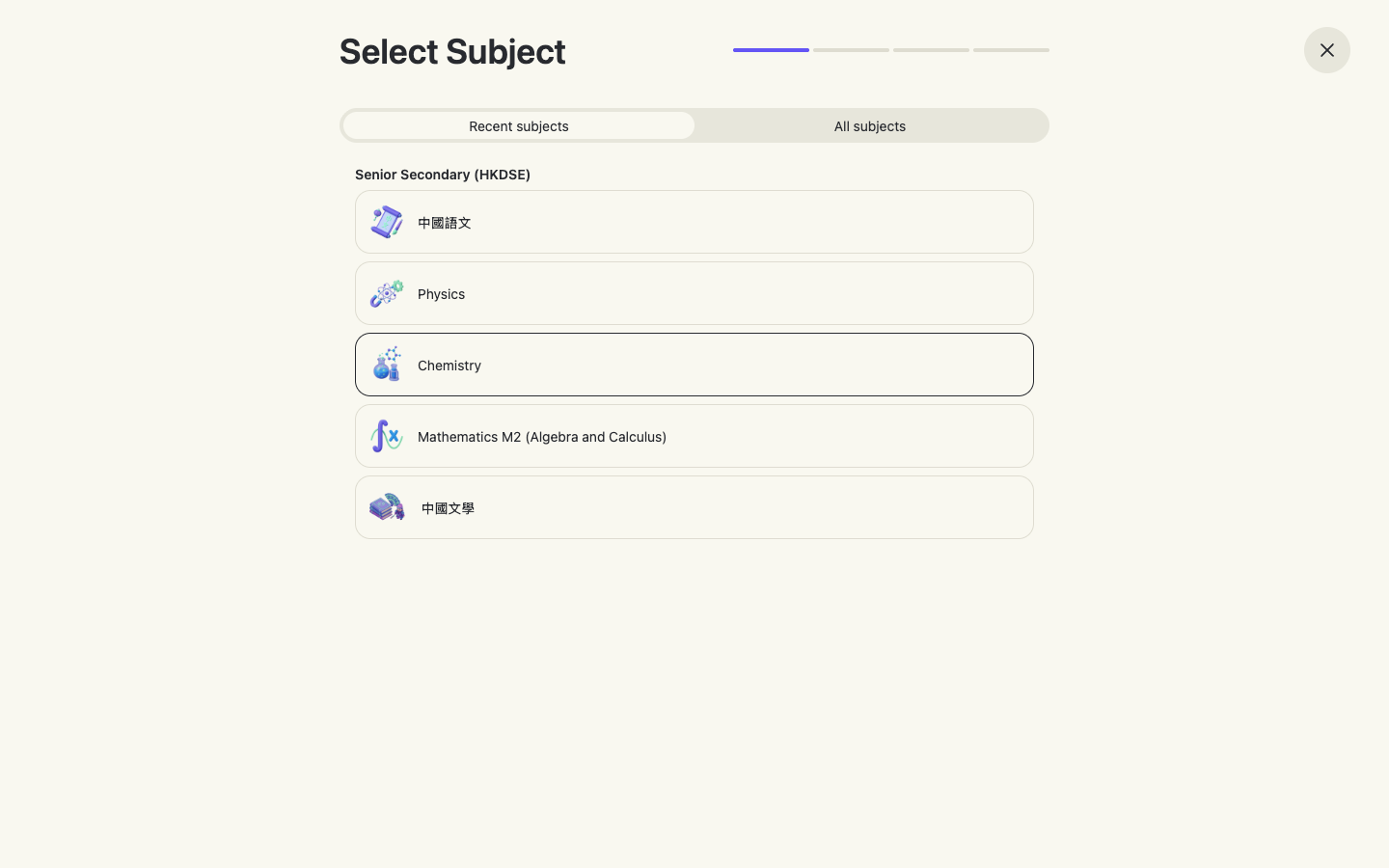
Option B — Generate with AI: pick the subject
The rest of this section follows the Generate with AI path. Recent subjects appear first; All subjects lists your school's full curriculum.
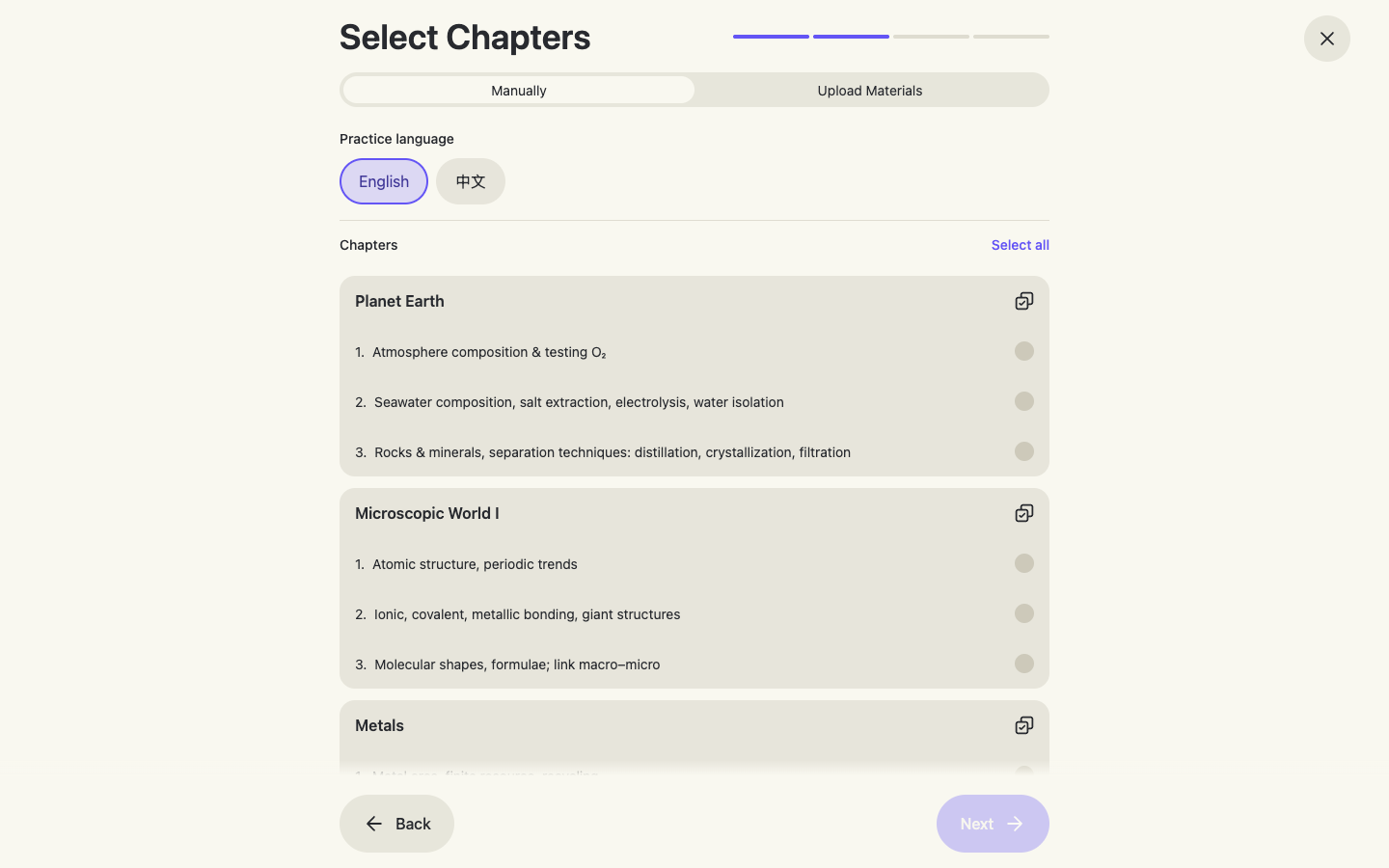
Pick chapters — or upload your own materials
In the Manually tab, tick one or more chapters (grouped by topic; each group has a Select all) and choose the question language (English / 中文). The AI generates questions within your selection.
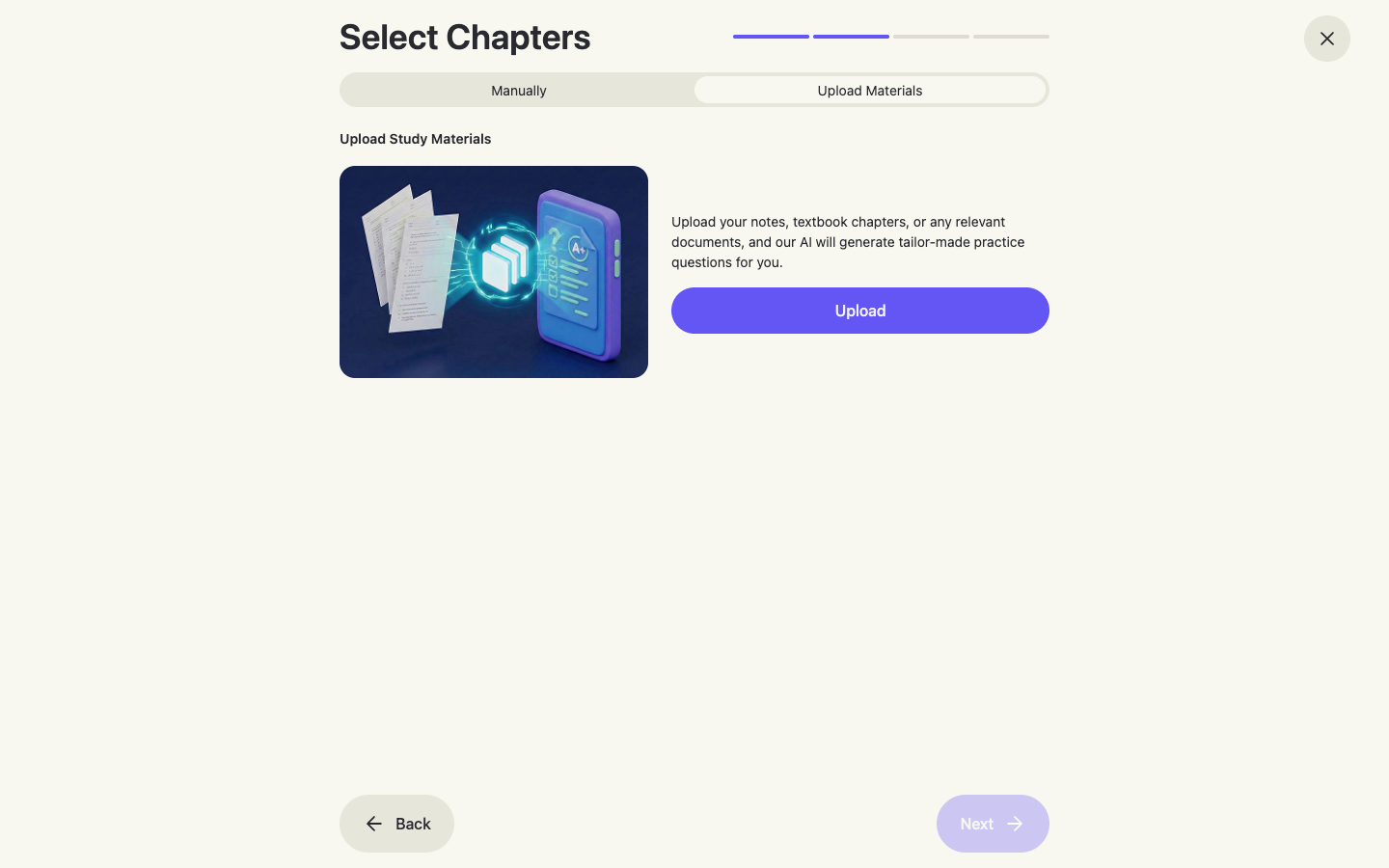
Upload Materials: AI questions from your own notes
Switch to the Upload Materials tab to upload your own teaching materials instead — notes, textbook chapters or any relevant documents. The AI generates tailor-made questions based on the scope, style and difficulty level of the uploaded materials, so the assignment matches exactly what you taught.
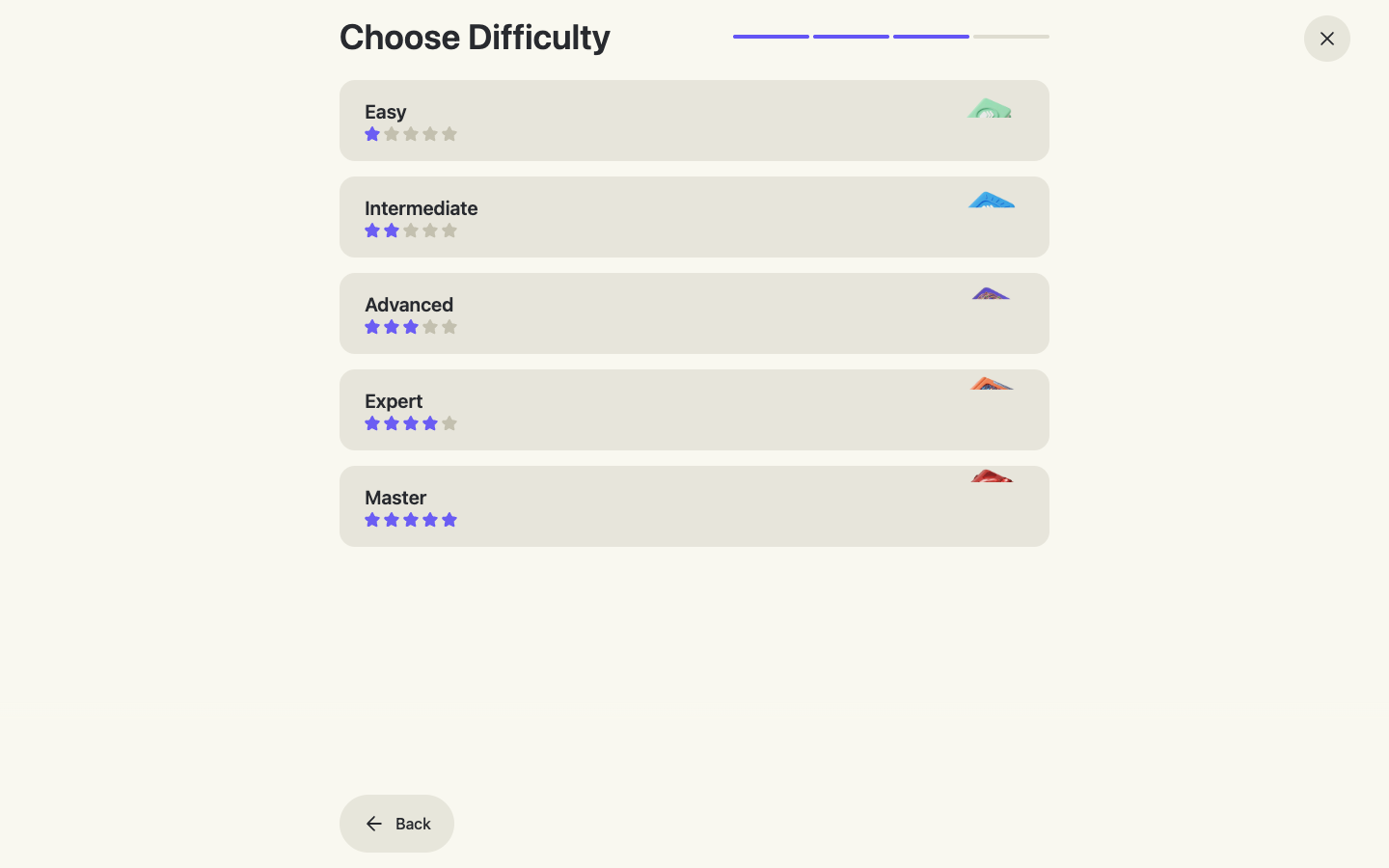
Choose difficulty
Five levels from Easy to Master.
Name it and set question counts
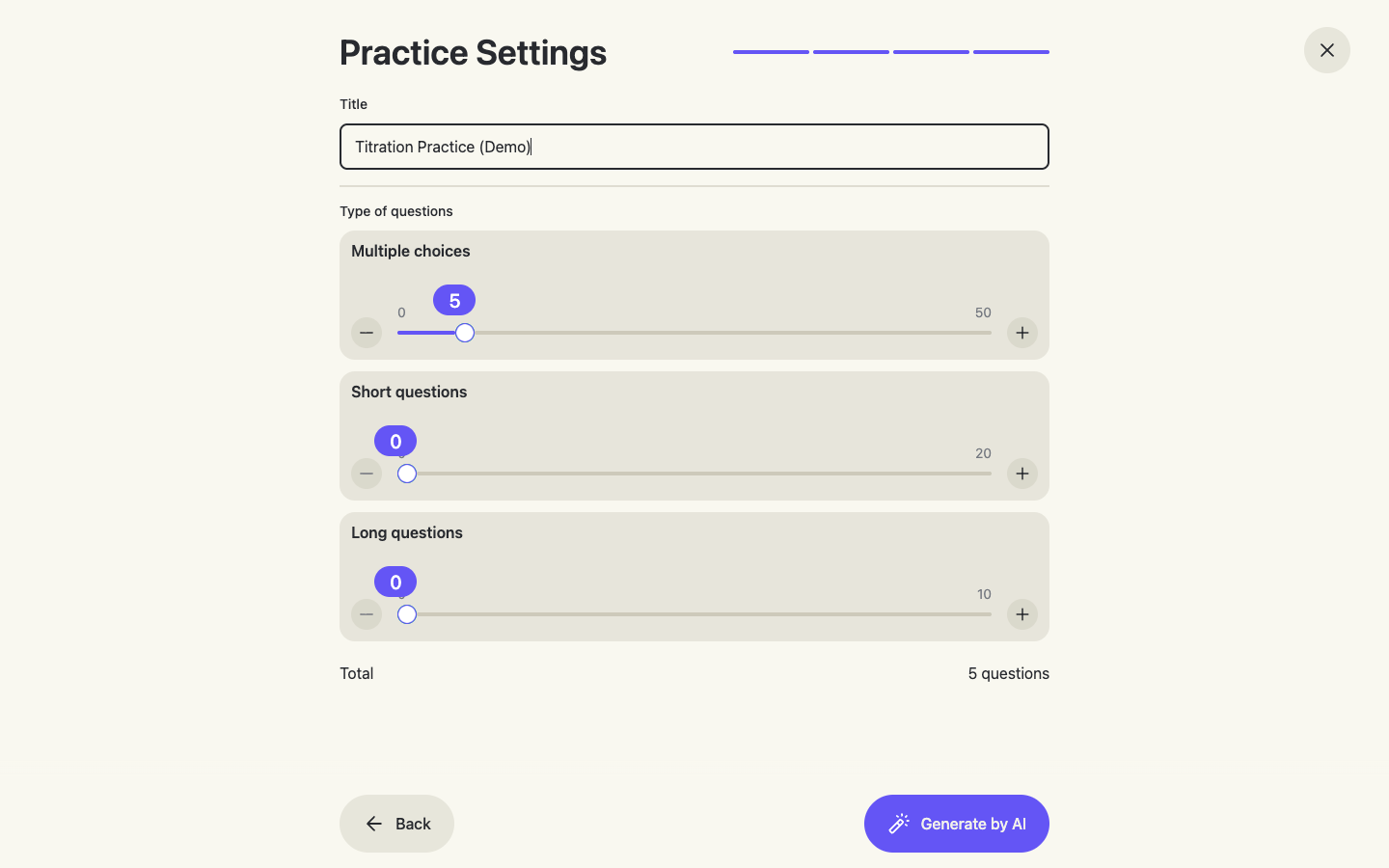
Give the assignment a clear title and use the sliders to set how many questions of each type to generate, then click Generate by AI.
Preview and edit the questions
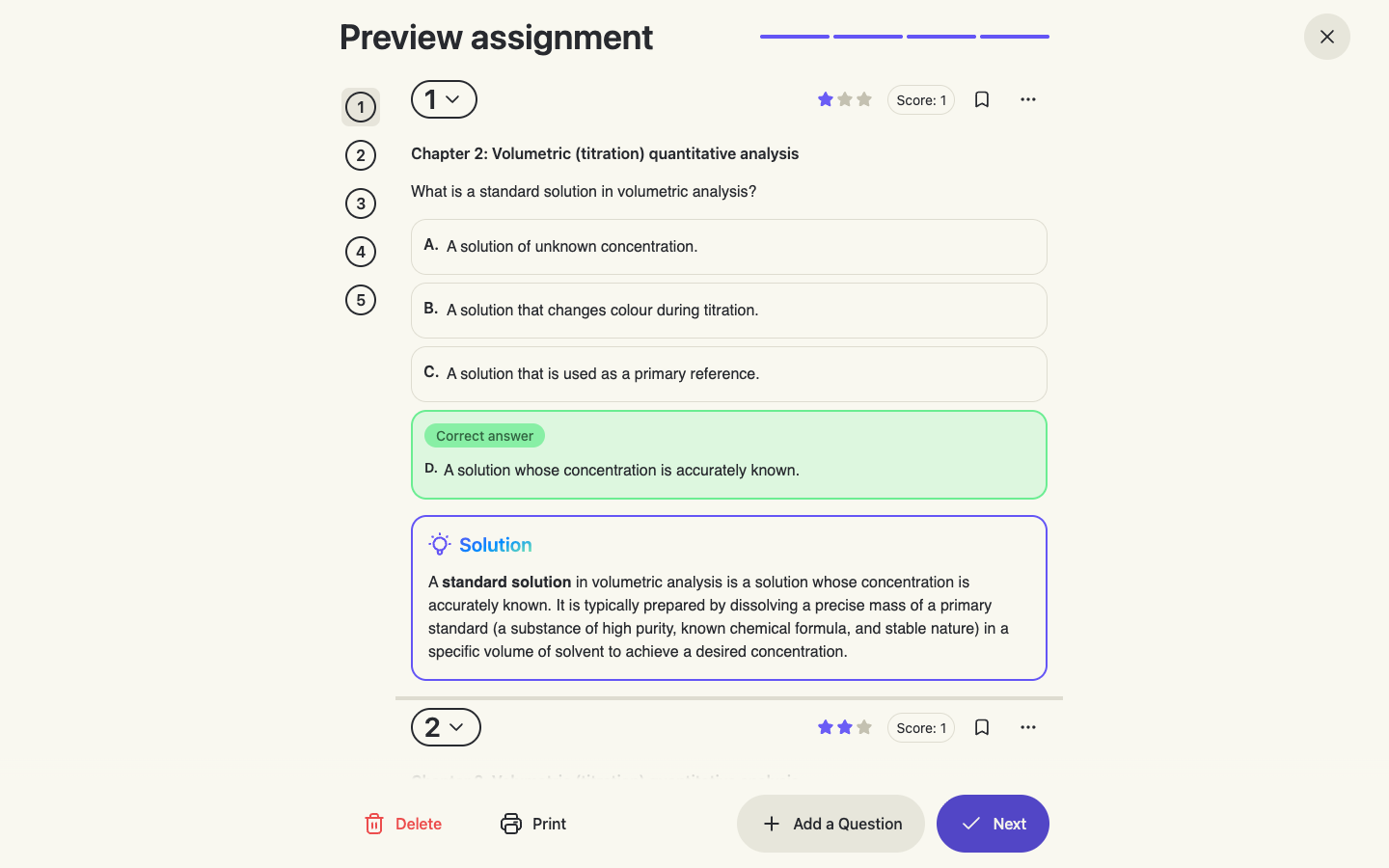
Each generated question shows its chapter, choices, the correct answer highlighted and a full Solution. You can adjust the per-question score, change difficulty stars, bookmark a question, delete or Add a Question. Happy? Click Next.
Section 3
Print it or assign it to students
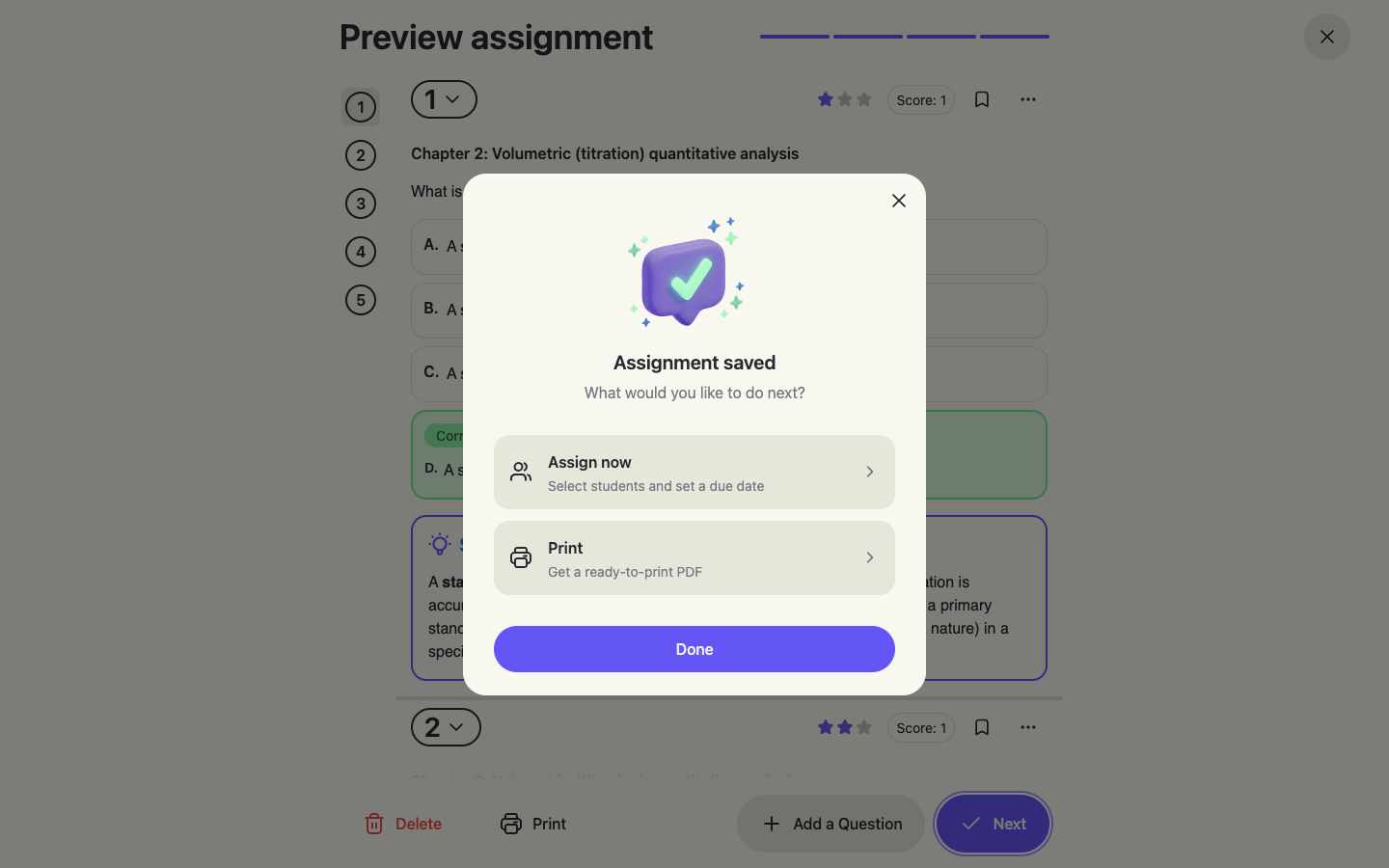
After the preview, choose Assign now (select students and set a due date) or Print (get a ready-to-print PDF). You can do both — assign digitally and print for students who work on paper.
Assign now or print
Print — with or without solutions
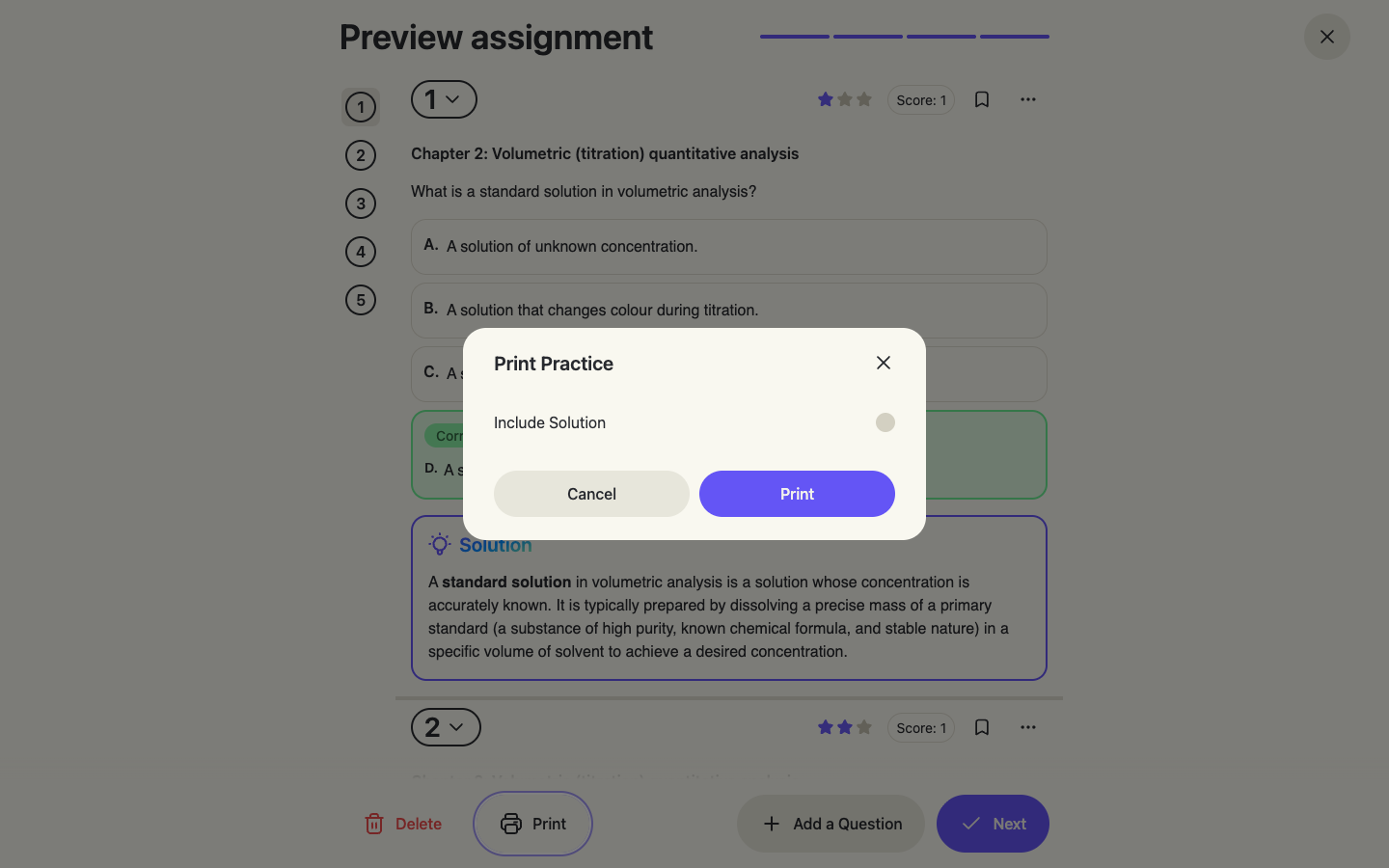
The print dialog has an Include Solution toggle: off for the student paper, on for a marking copy.
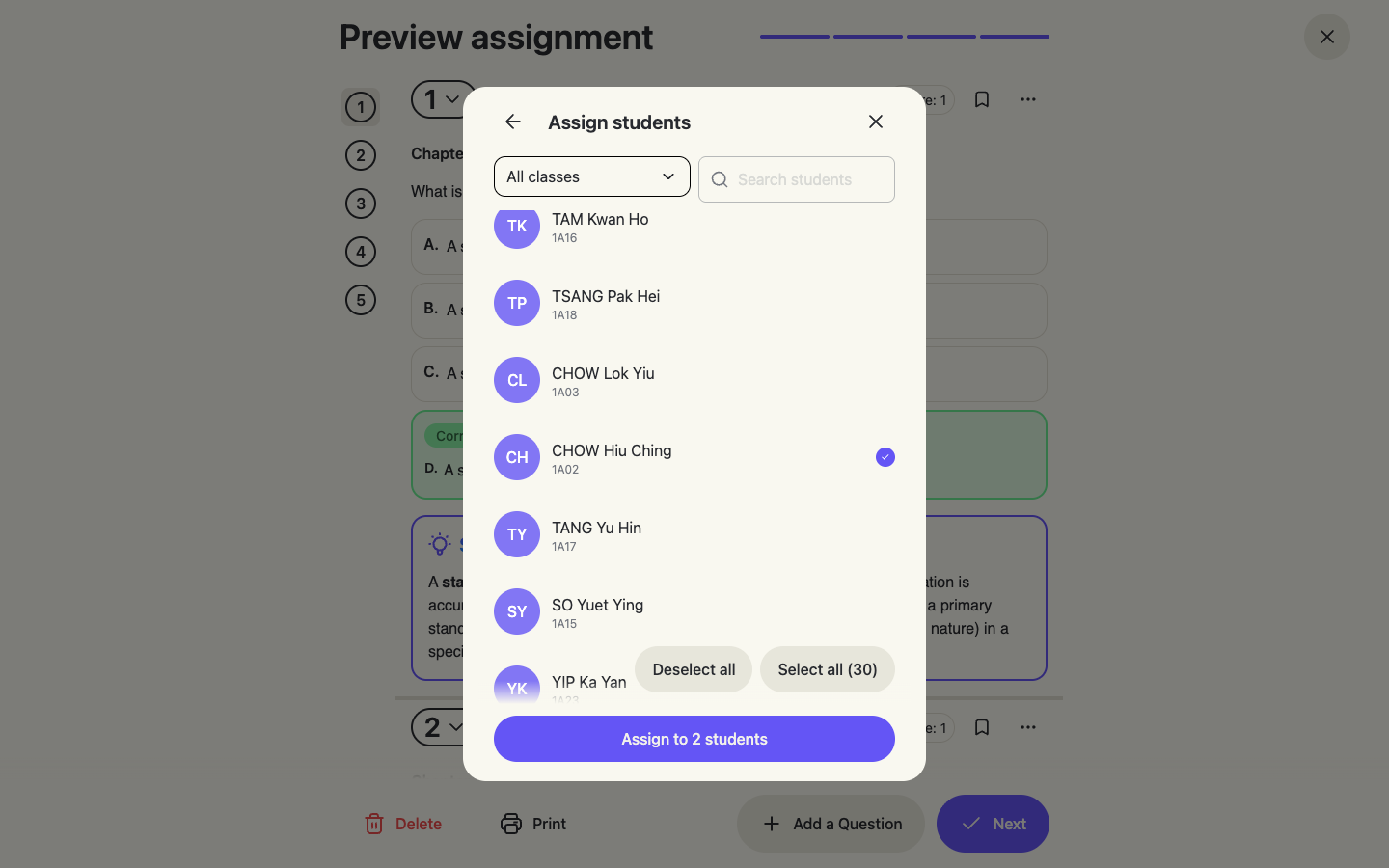
Select students
Pick individual students or use Select all for the whole class. Students are listed by class with their student numbers.
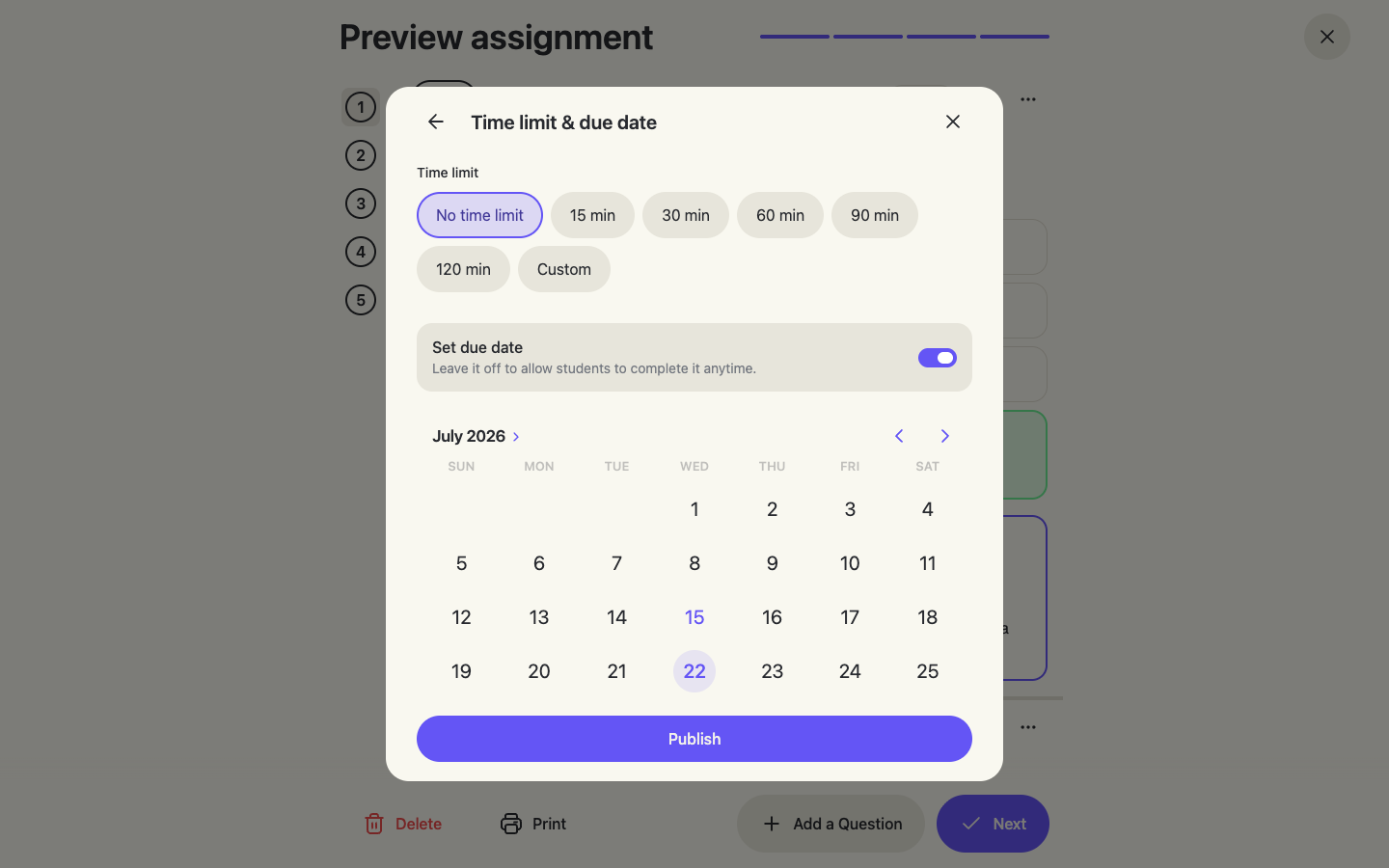
Time limit & due date, then publish
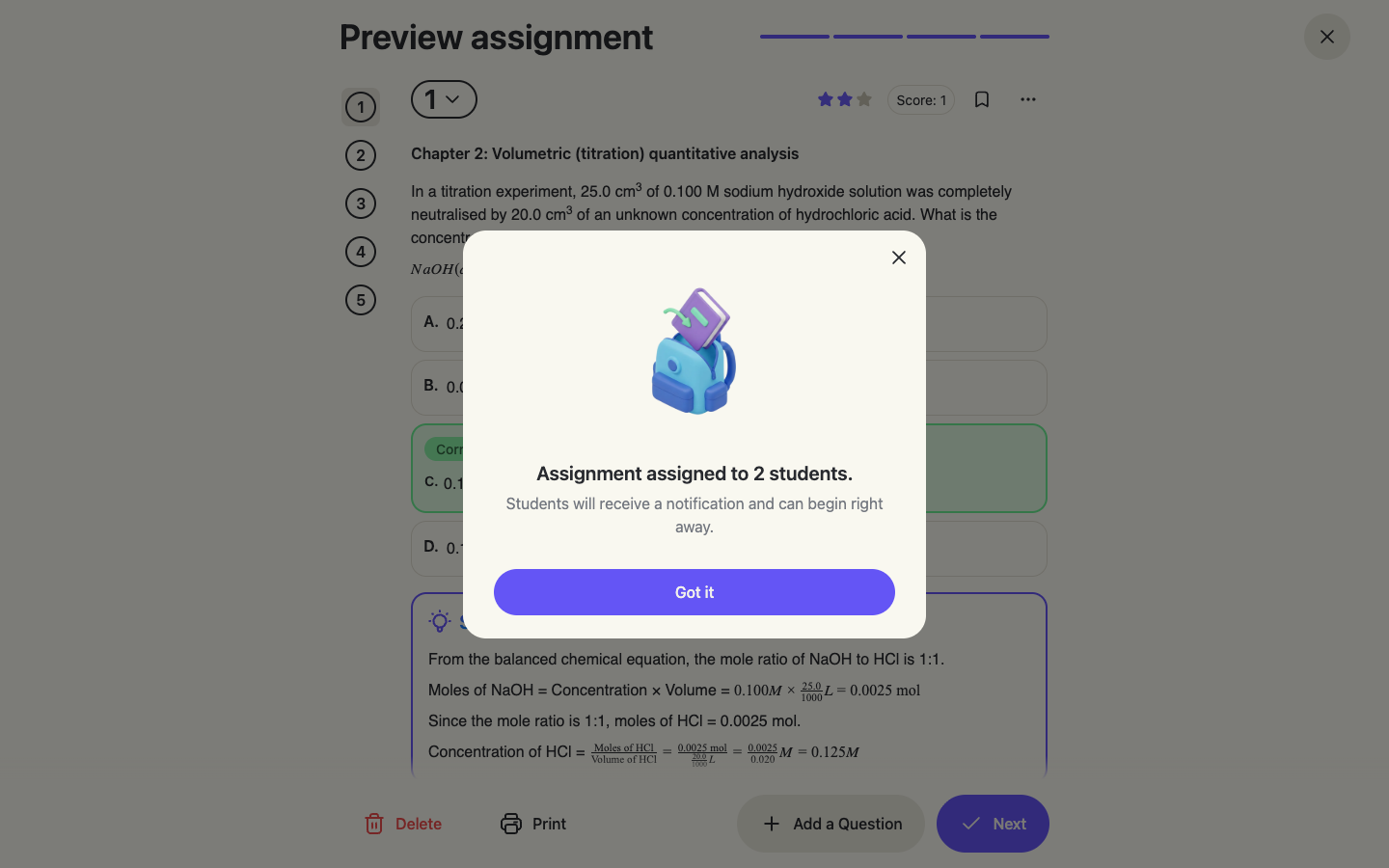
Optionally set a time limit (15–120 min or custom) and a due date (submissions after it are marked Late). Click Publish — students receive a notification and can begin right away.
Confirmation
Section 4
Track submissions & upload handwritten answers (OCR)
Open any assignment from Home or the Assignments list to see its live status.
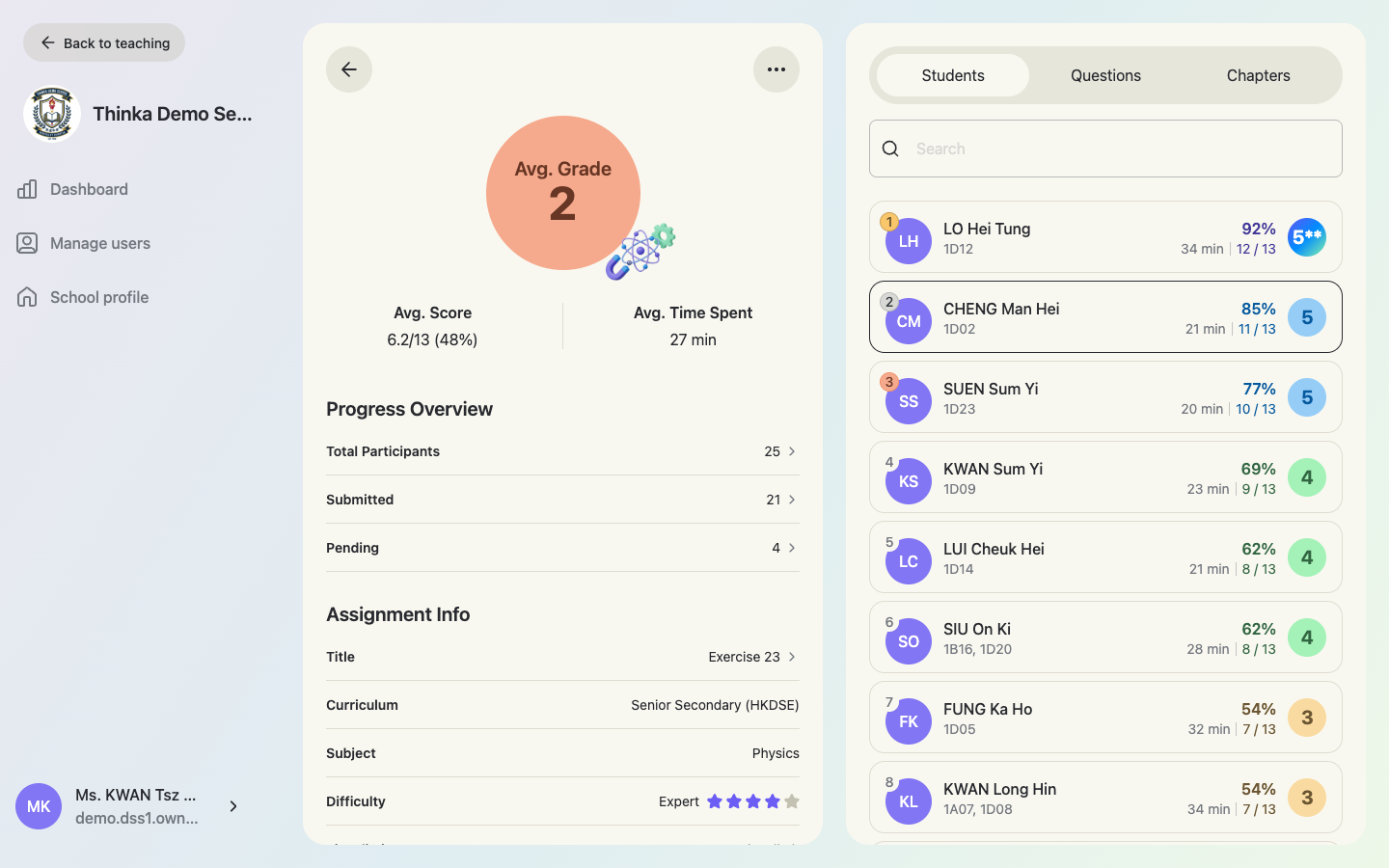
The assignment detail view
The left panel shows the average grade / score, Progress Overview (participants, submitted, pending) and assignment info — you can edit the title, due date and add remarks here. The right panel lists students: submitted ones with scores, and a Waiting for submission list. + Assign more adds students after publishing.
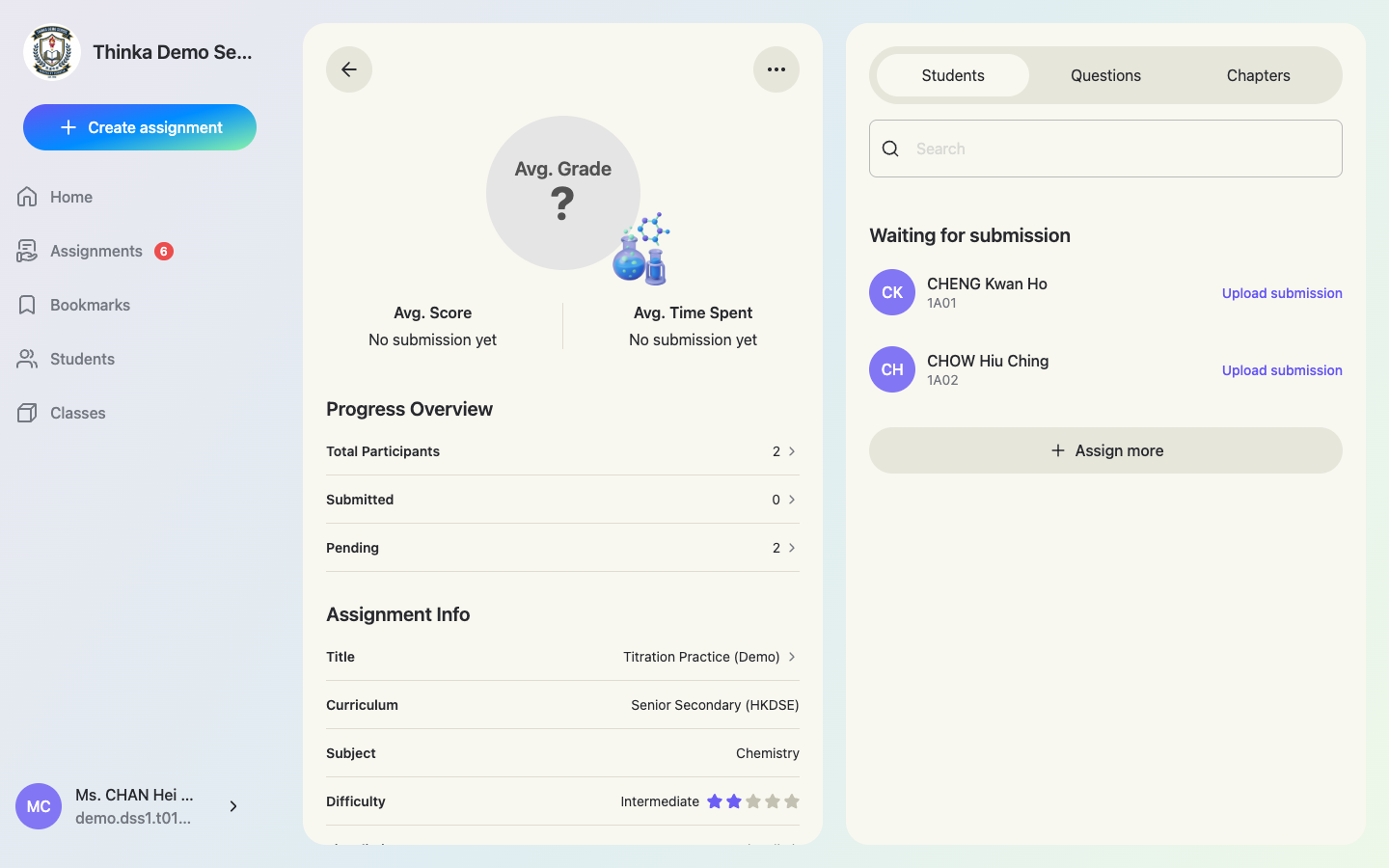
Upload a handwritten submission
For students who answered on paper, click Upload submission next to their name and choose a photo or scan of their answer sheet. OCR recognises the handwriting, matches answers to questions and grades the submission automatically.
The uploaded submission is graded instantly
In this example CHOW Hiu Ching's paper answers were uploaded and graded 1 / 5 (20%) automatically — she moves from “Waiting” into the ranked list, exactly like a digital submission.
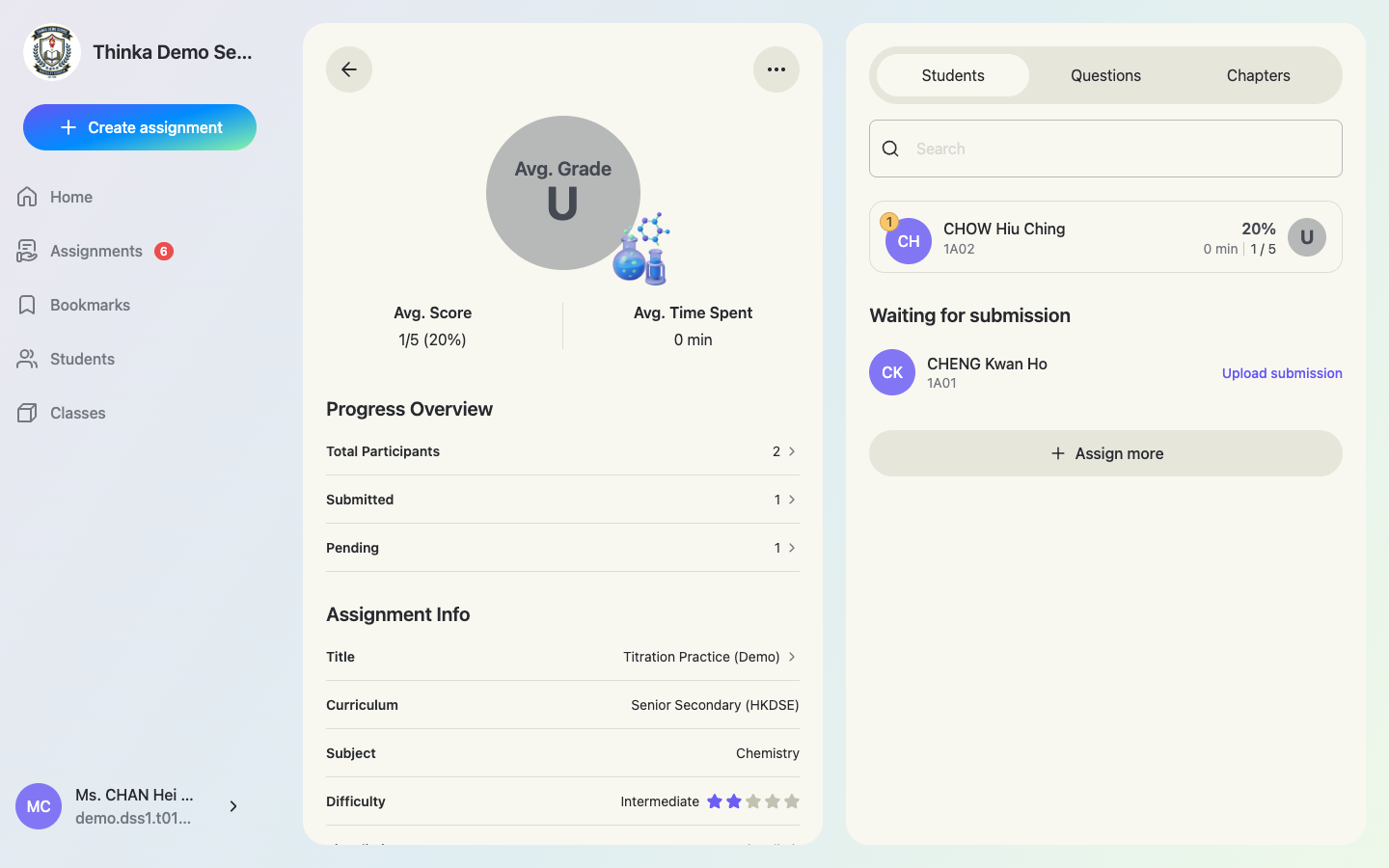
Digital submissions are auto-graded the moment students submit — “waiting for submission” is all you have to do for online classes.
Section 5
Class reports & student reports
Your classes
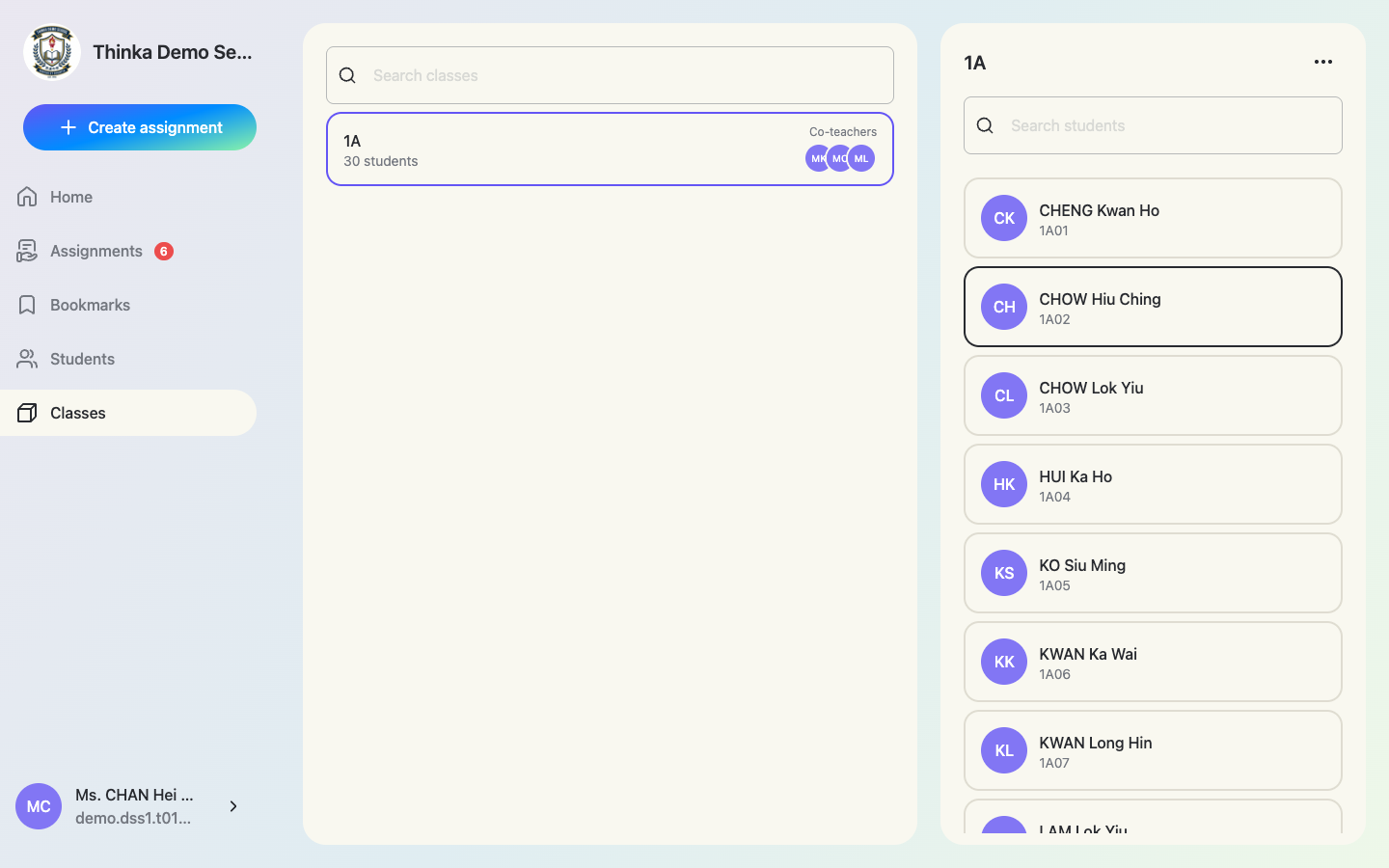
Classes in the sidebar lists your classes with co-teacher avatars and the roster. Open a class and use the ⋯ menu → Class Report.
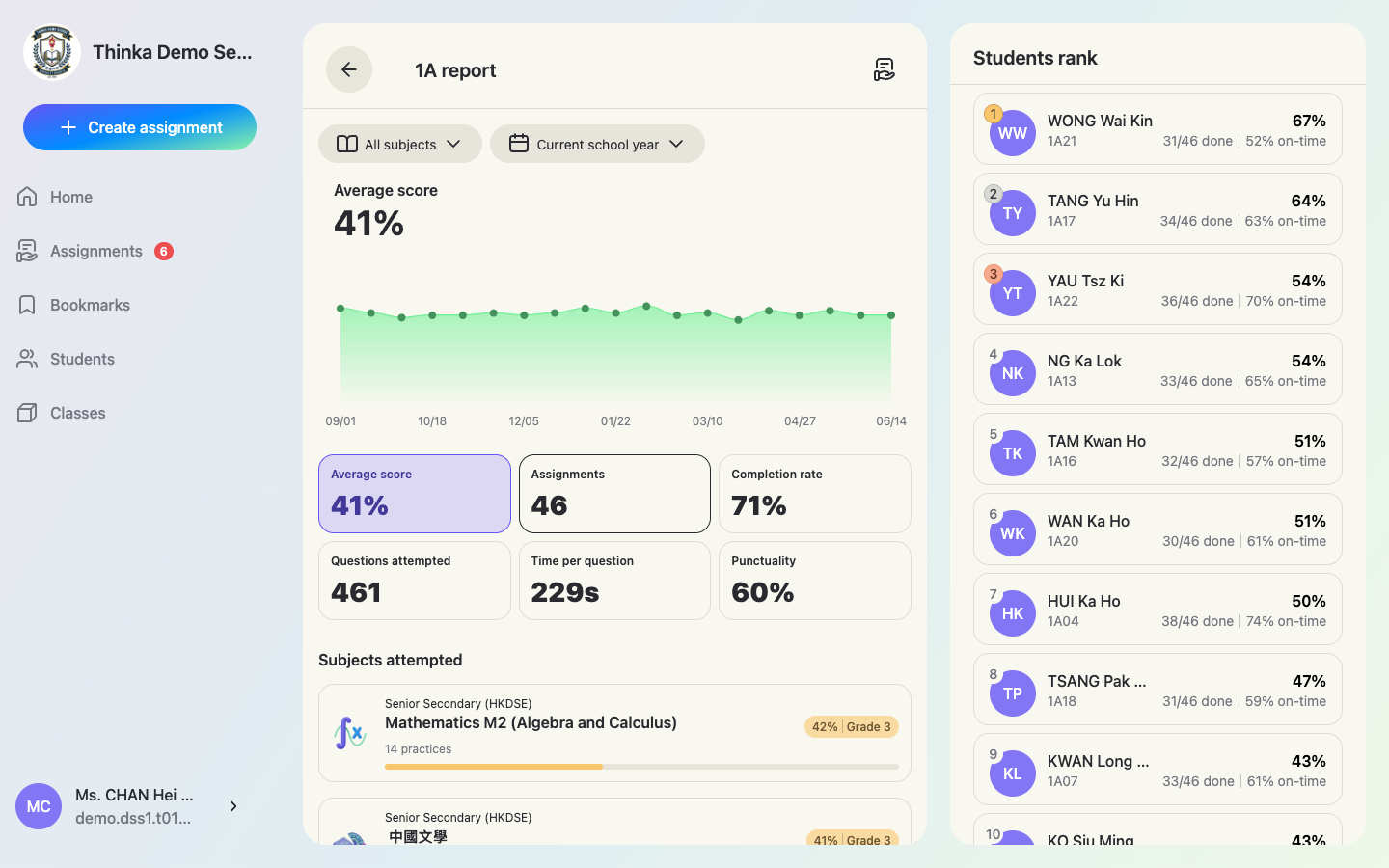
Class report
Average score with a trend chart, plus Assignments, Completion rate, Questions attempted, Time per question and Punctuality cards; Subjects attempted with per-subject grades; and a Students rank. Filter by subject and time range — the default is the current school year.
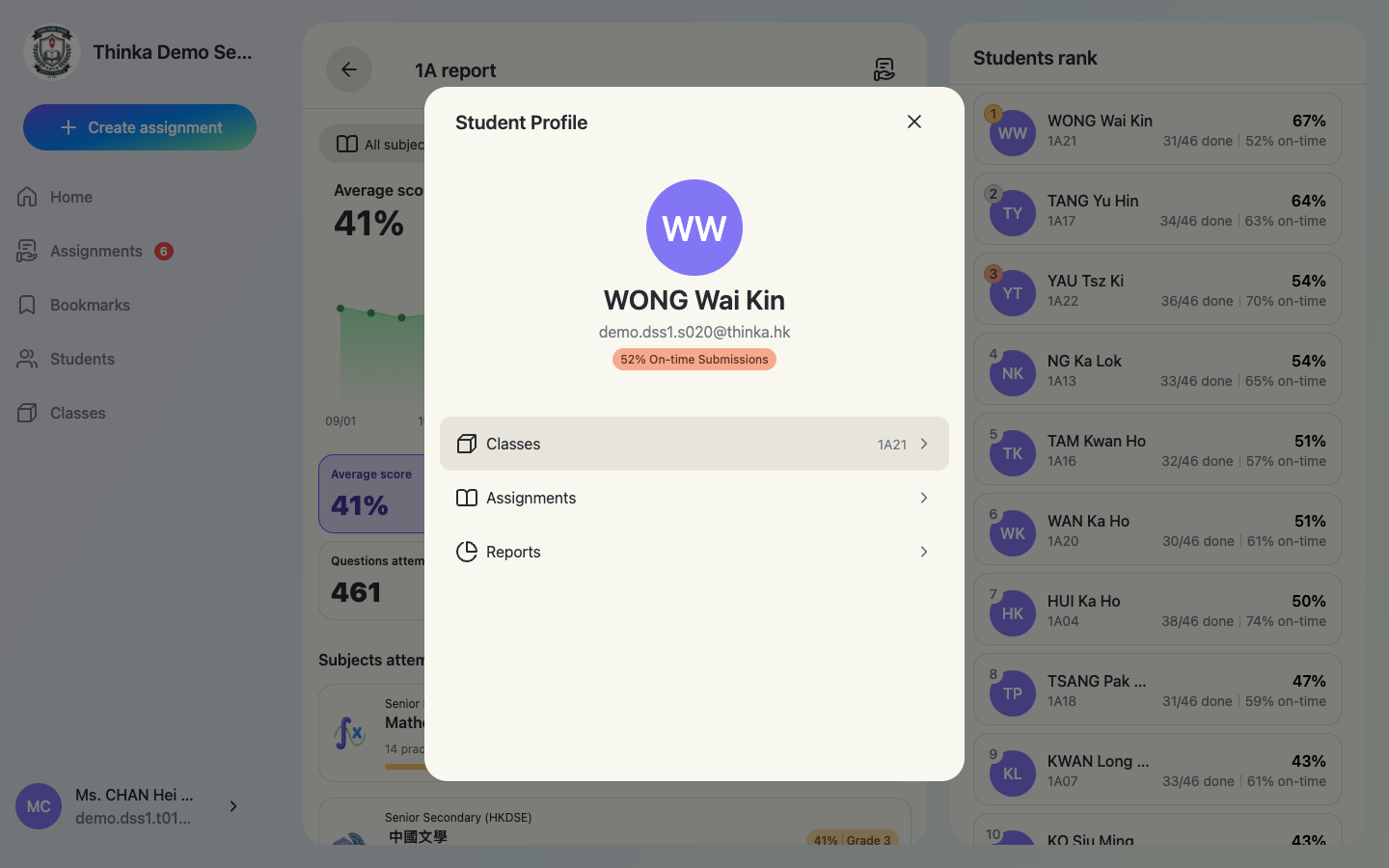
Open a student's profile from the rank
Tap any student in the rank to open their profile card (classes, assignments, reports).
Student report
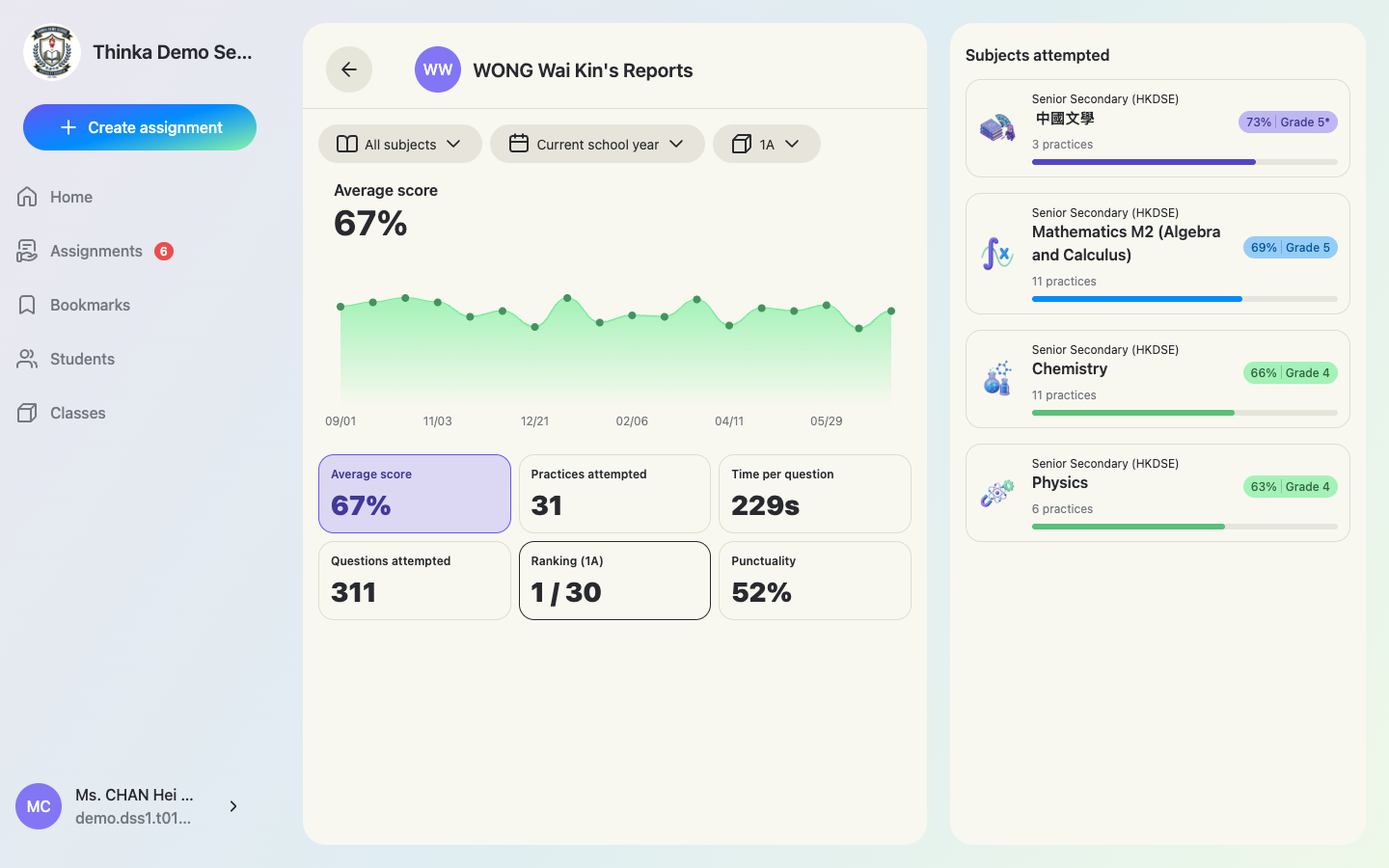
Click Reports on the profile to see the student's average score, trend, practices / questions attempted, time per question, class ranking, punctuality and per-subject grades. Your class-report filters (time, subject, class) carry over automatically.
Per-assignment analysis
Every assignment's result view has Students / Questions / Chapters tabs — see who struggled, which questions were missed most, and which chapters need revisiting.