Student Guide
Practise any subject with AI, do assignments from your tutor, hand-write answers, revise with notes & flash cards, and watch your grades climb.
Section 1
Your practice home
Sign in at app.thinka.ai with a (free) student account. The home page gathers everything that needs your attention.
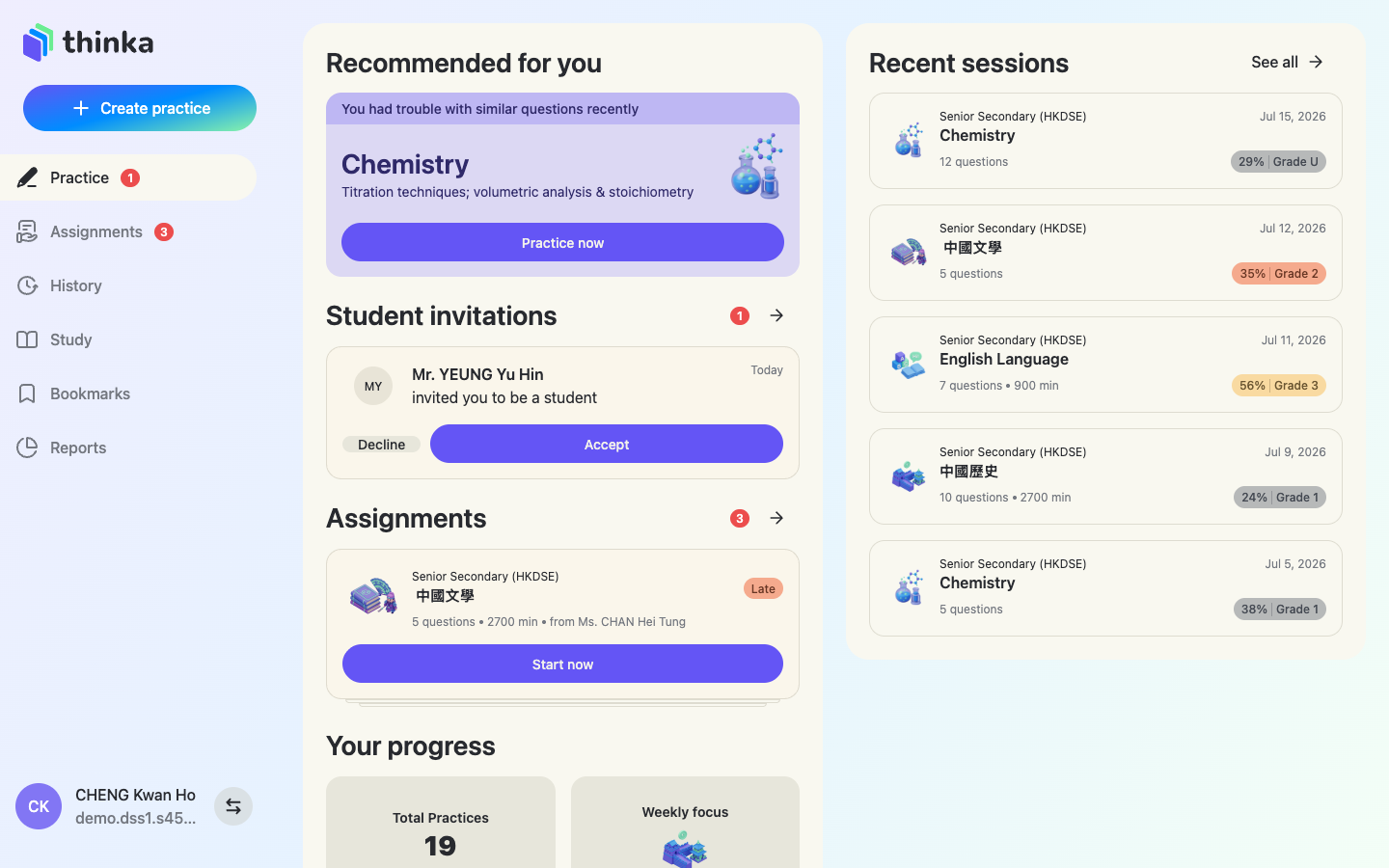
One page for everything
- Recommended for you — AI suggests the subject and chapters to practise, based on questions you recently found difficult.
- Student invitations — accept (or decline) requests from teachers who want to add you as their student.
- Assignments — work from your teachers, with a Start now button.
- Your progress — total practices and this week's focus.
- Recent sessions — your latest practices with scores and grades.
The sidebar
Practice (home), Assignments, History (every past practice), Study (notes, summaries & flash cards), Bookmarks (questions you saved) and Reports (your analytics). + Create practice starts a new practice any time.
Section 2
Assignments from your teacher
Accept your teacher's invitation
When a teacher adds you, an invitation card appears on your home page. Press Accept — from then on the teacher can assign you work and see your results for those assignments.
Start an assignment
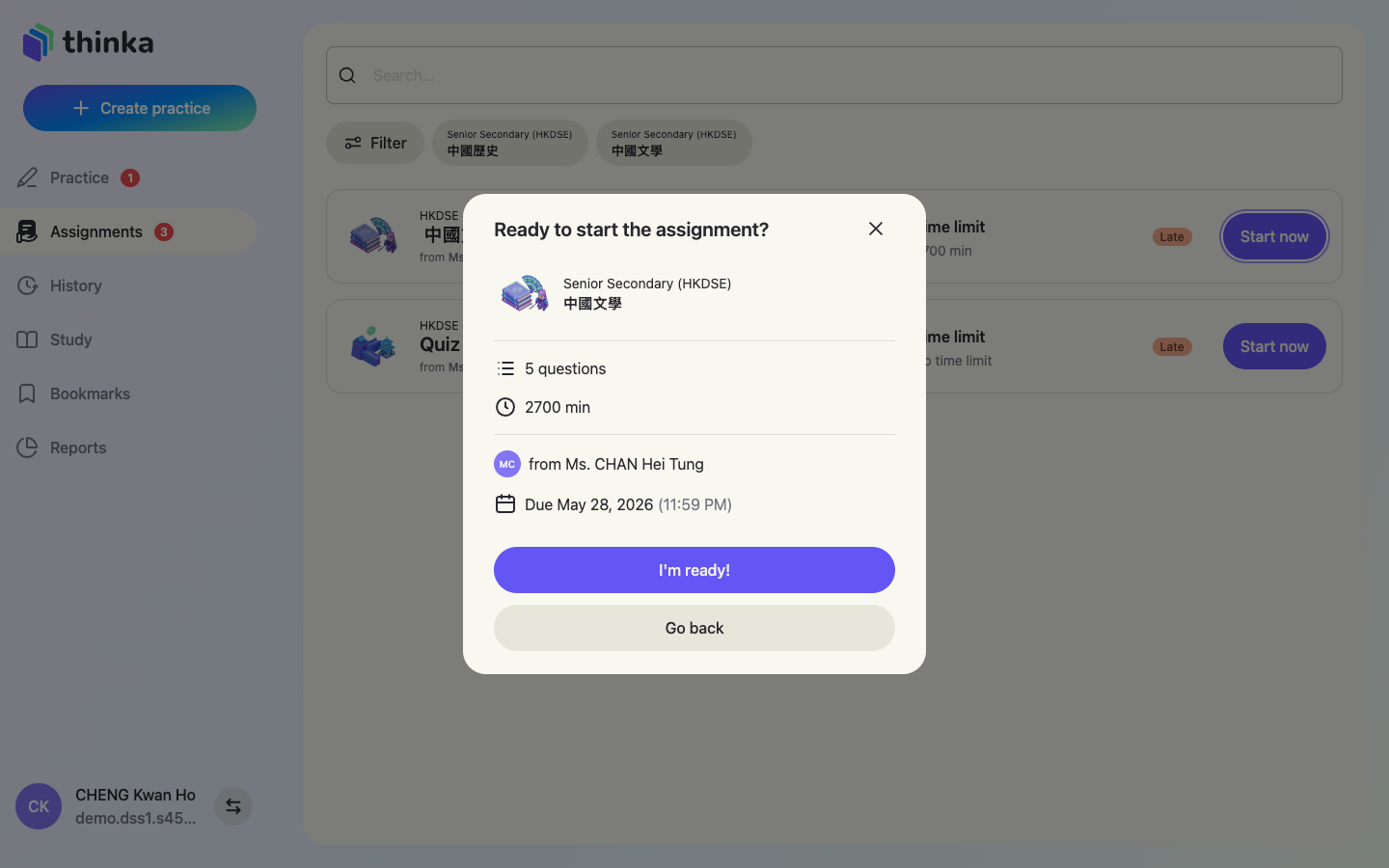
The Assignments page lists everything assigned to you with question counts and time limits (a Late tag marks overdue ones). Press Start now — a summary sheet shows the subject, number of questions, time limit, who set it, and the due date. Press I'm ready! to begin.
Answering an assignment works exactly like a self-made practice — see the next section.
Section 3
Create your own practice
Don't wait for homework — press + Create practice and AI builds a personalised set in seconds.
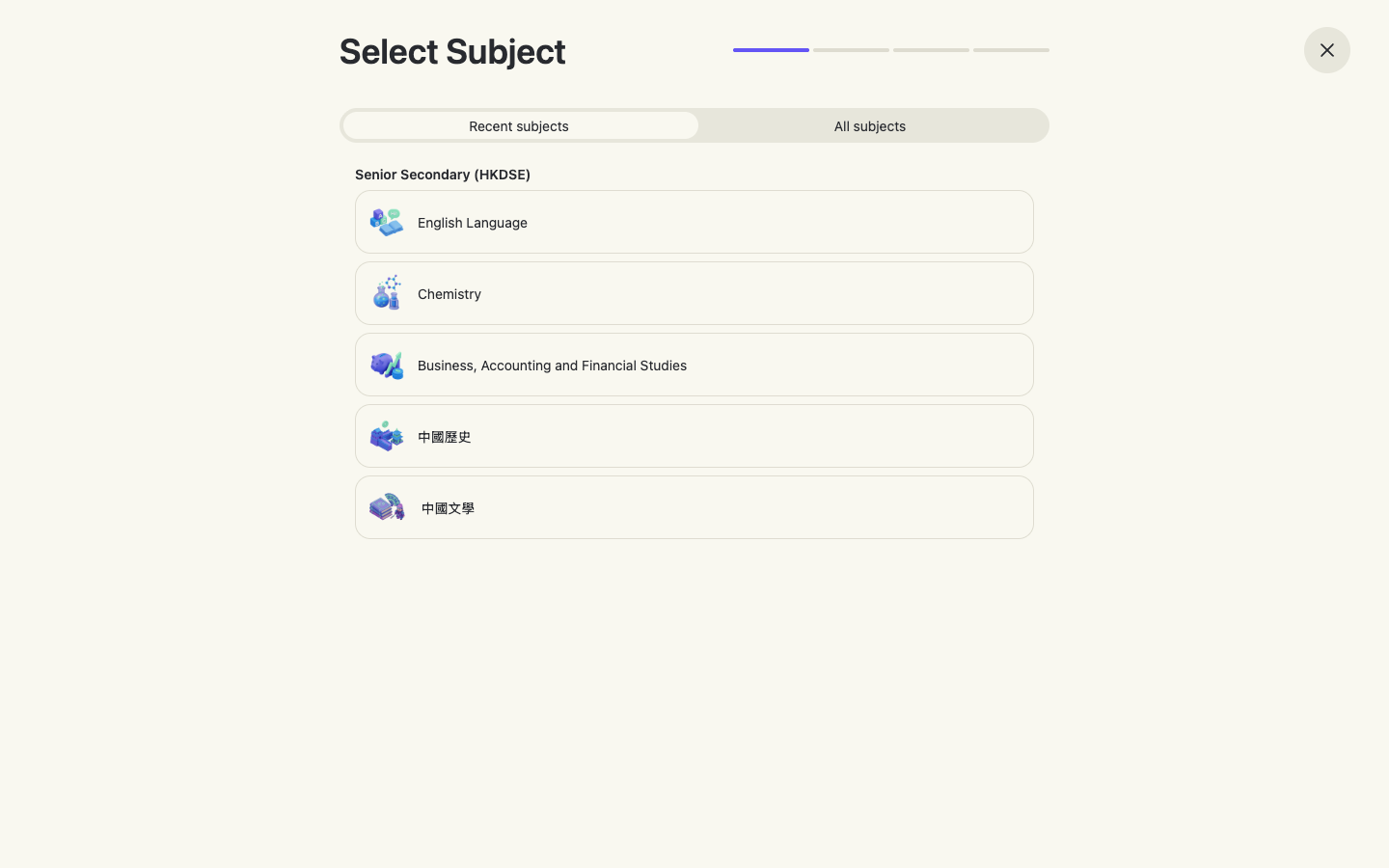
1 · Pick the subject
Recent subjects puts the ones you use most first; All subjects opens the full catalogue for your curriculum (HKDSE, IGCSE, IB, A-Levels and more).
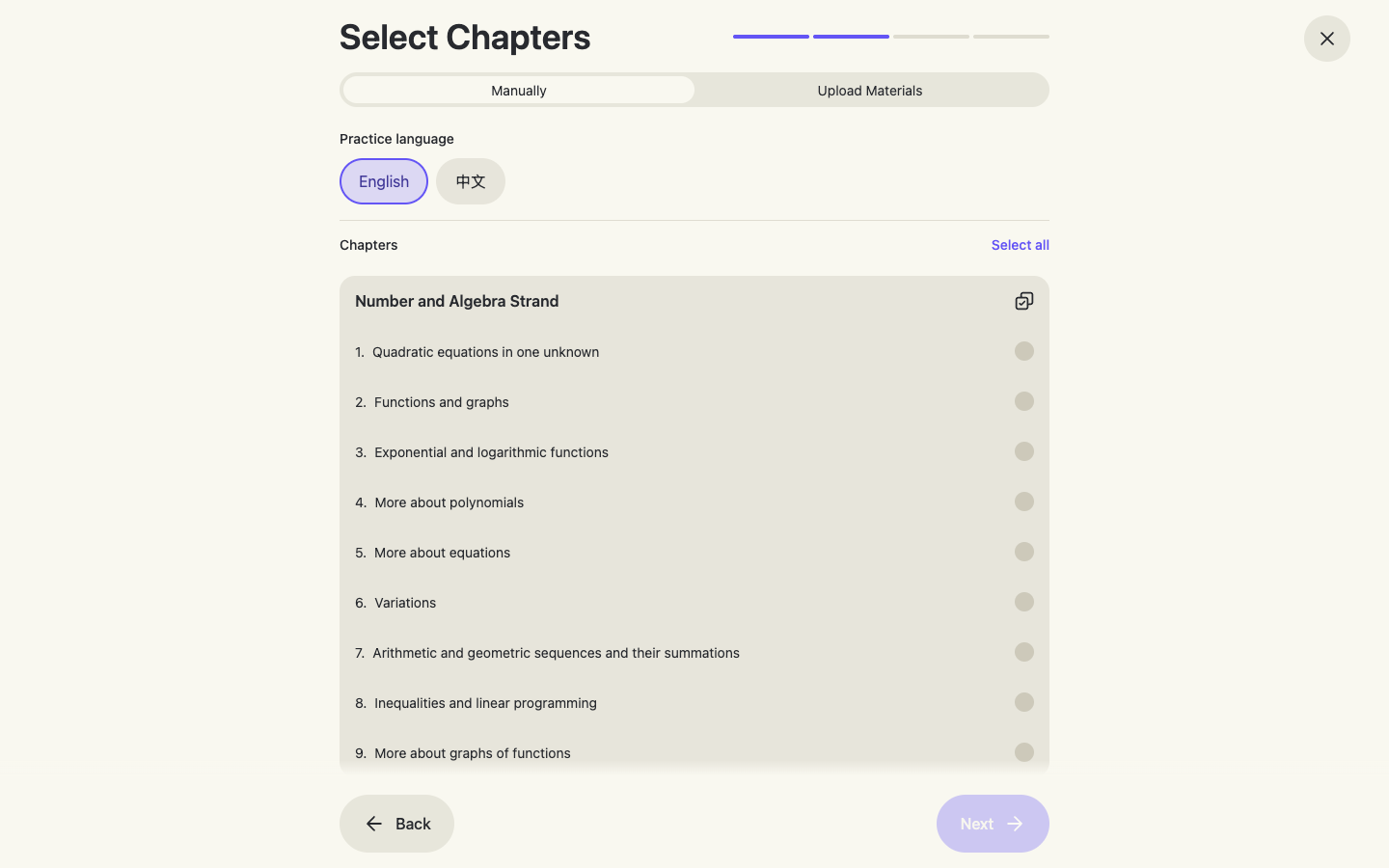
2 · Choose chapters — or upload your notes
Pick the practice language, then tick the chapters you want to drill. Prefer to practise from your own materials? The Upload Materials tab takes notes, e-books or past papers, and AI generates questions matching their scope, style and difficulty.
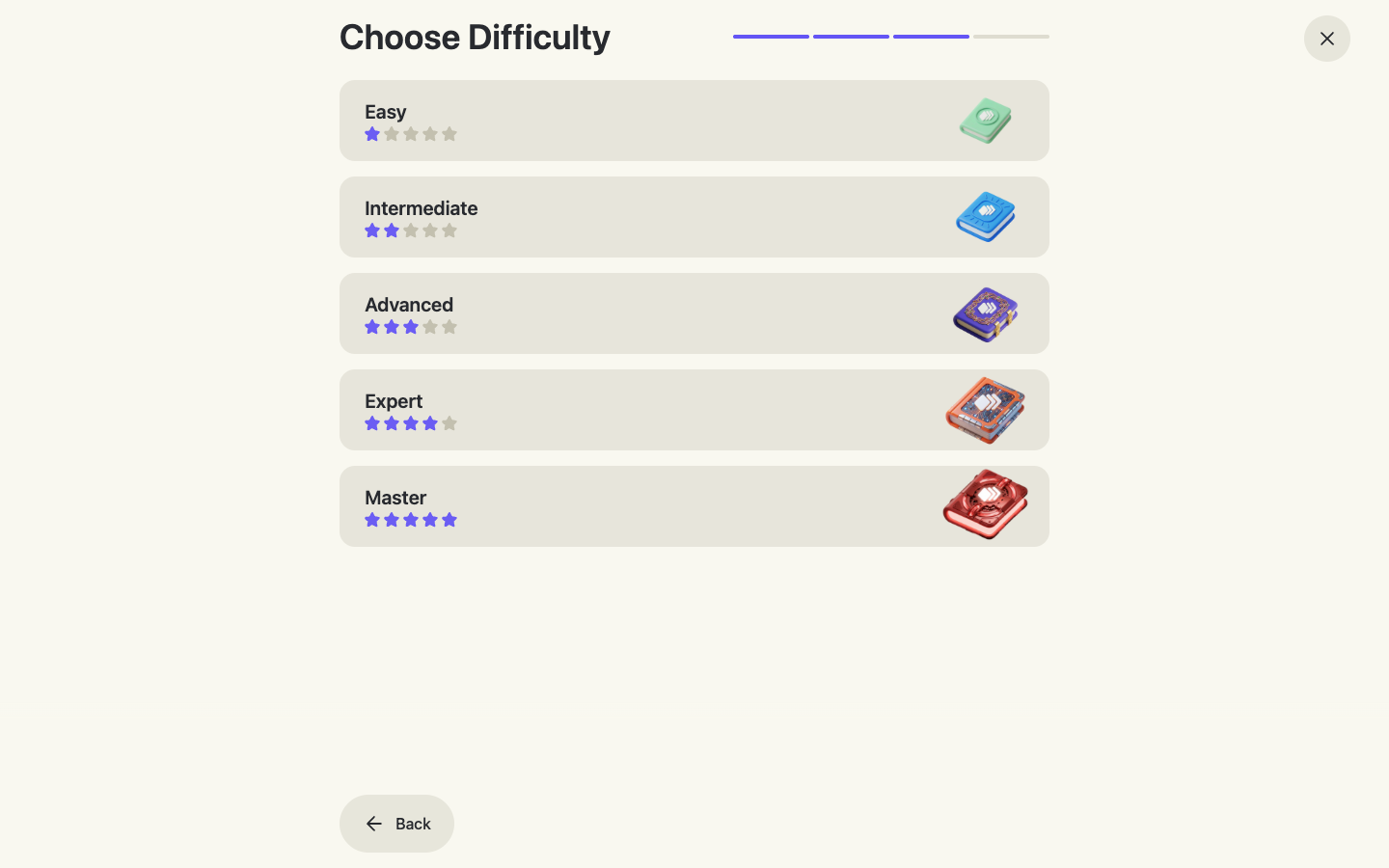
3 · Difficulty
Five levels from Easy to Master. Pick where you are today — you can always level up next time.
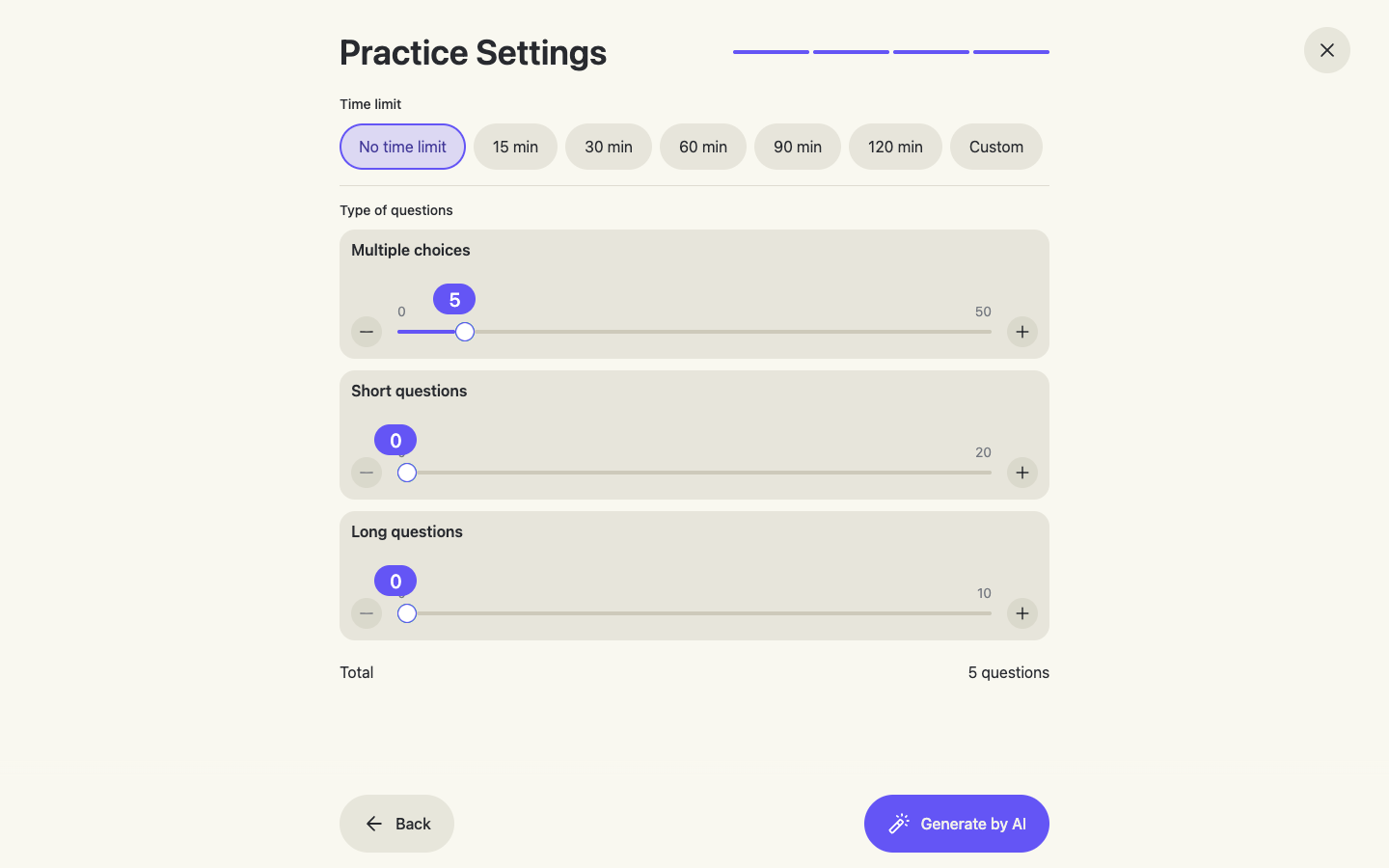
4 · Time limit & question mix
Optionally set a time limit (15–120 min), choose how many multiple-choice, short and long questions you want, and press Generate by AI.
Section 4
Answering questions
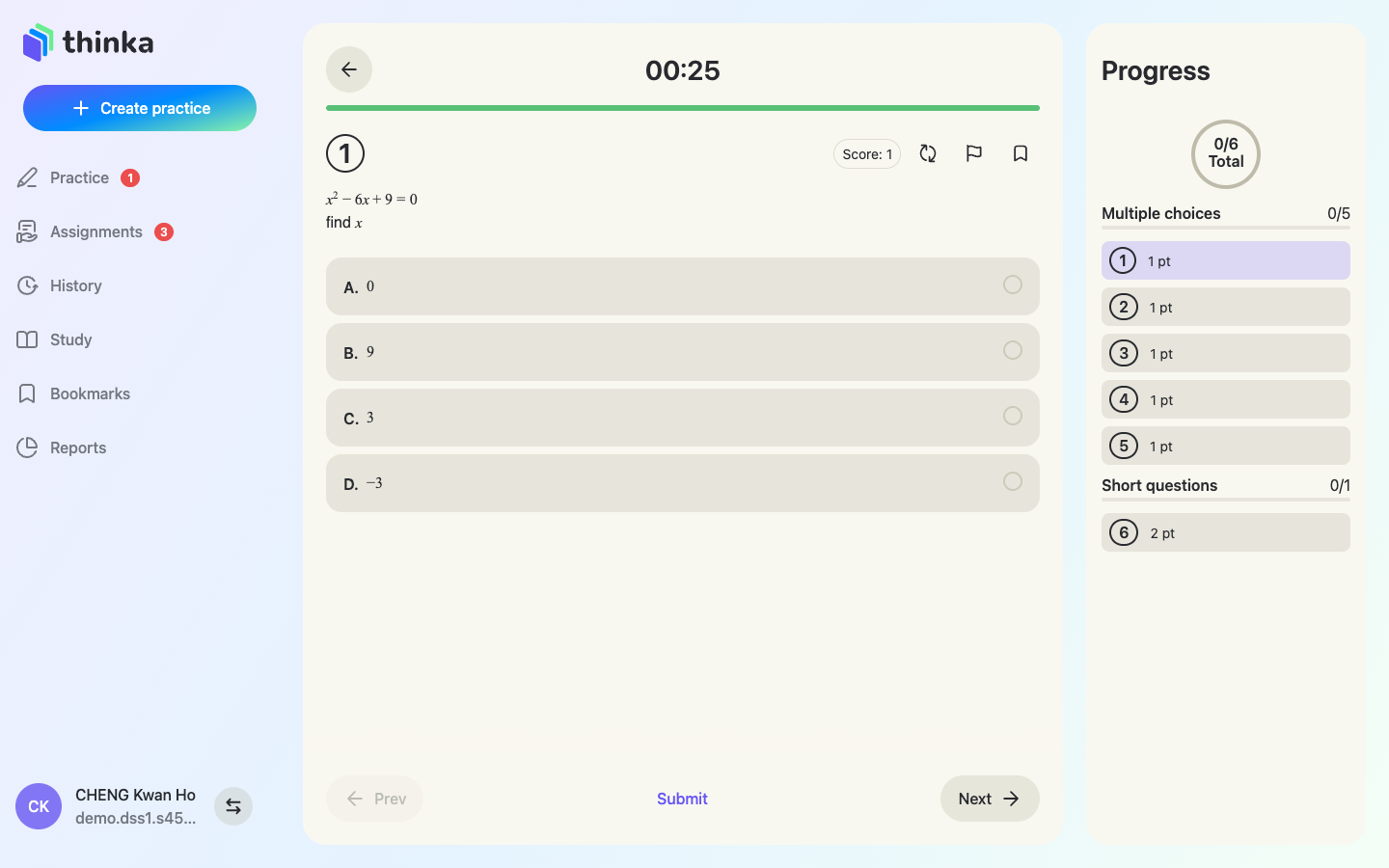
The practice screen keeps you focused: one question at a time, a timer at the top, and a progress rail on the right showing every question's status.
Multiple-choice questions
Tap an option to answer — the progress rail marks it Answered. Use Prev / Next or tap any question number in the rail to jump around. Math renders beautifully, including equations.
Swap a question you don't like
The 🔄 Change Question icon regenerates the current question — the AI replaces it with a fresh one from the same chapter. The 🚩 icon reports a faulty question and AI fixes it immediately.
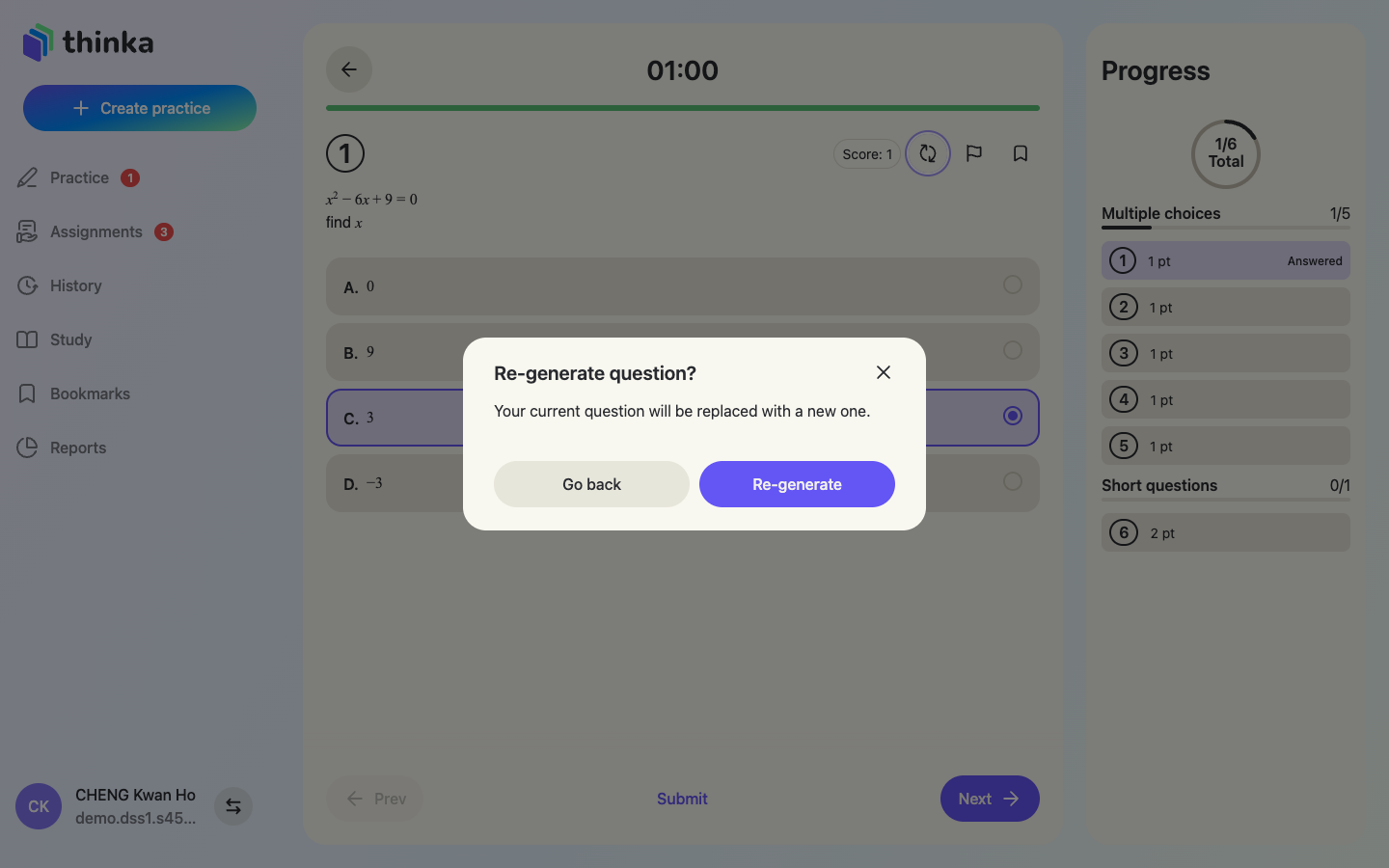
Written questions: type, photograph or hand-write
Short and long questions accept three input styles:
- Type in the rich-text editor (with a math formula tool).
- Upload your answer — photograph work you did on paper; the system reads it automatically.
- Write your answer — open a handwriting canvas and write with your finger, stylus or mouse.
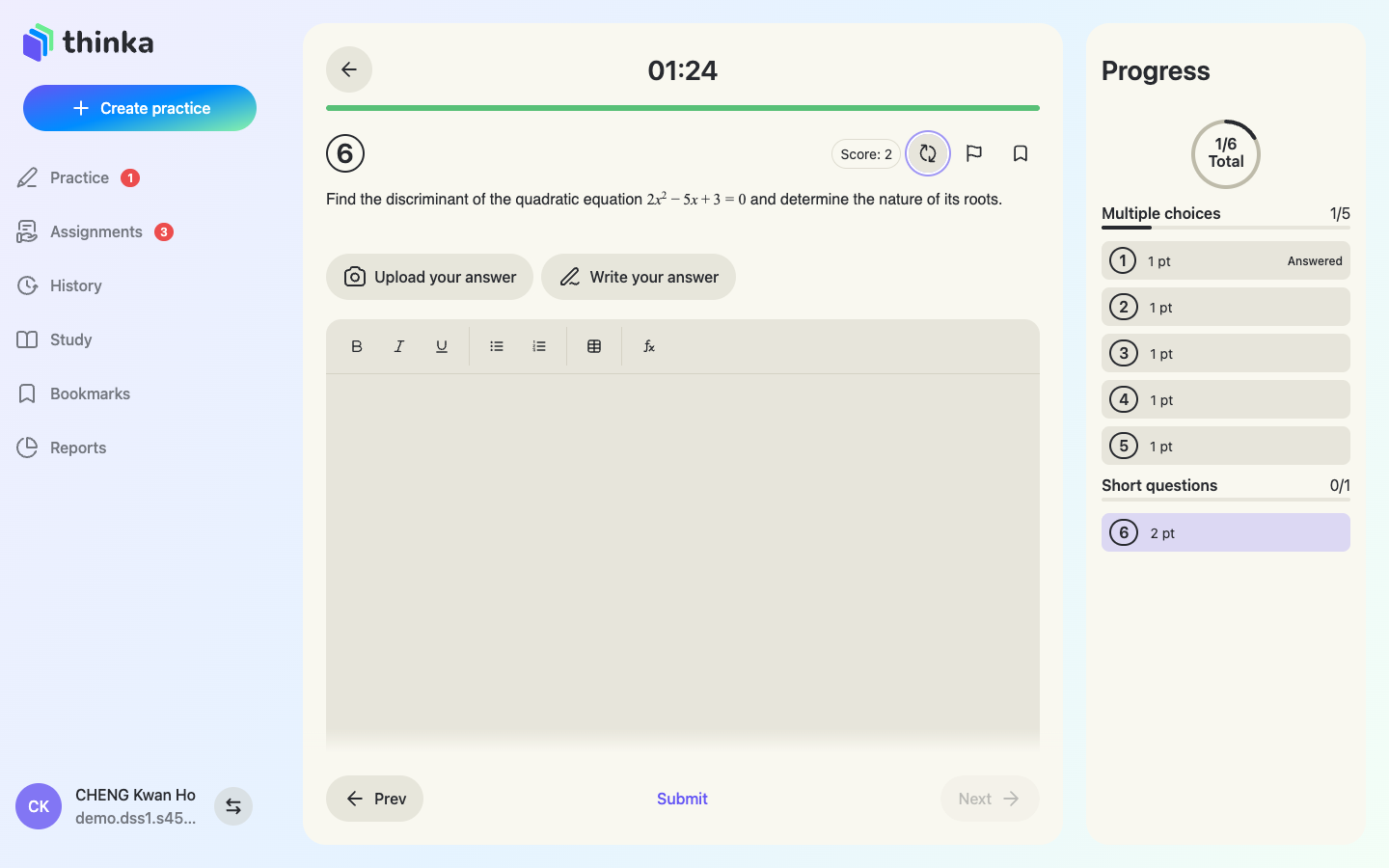
The handwriting canvas
Write naturally — pen, eraser, undo and redo tools sit in the toolbar. Equations are welcome.
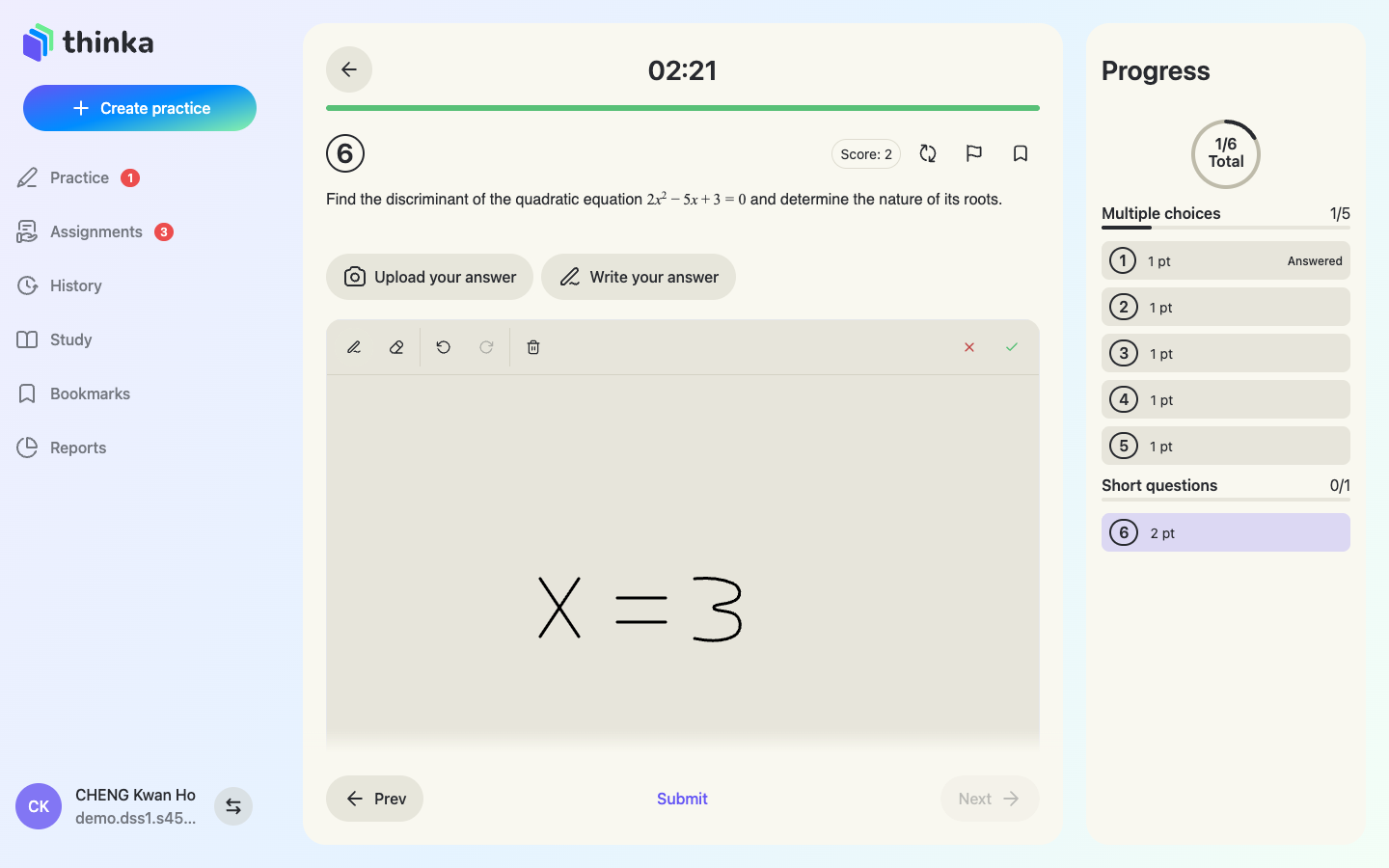
Handwriting becomes editable text
Press the ✓ tick and OCR converts your handwriting — equations included — into editable text in the answer box. Tap the equation afterwards to fine-tune it before submitting.
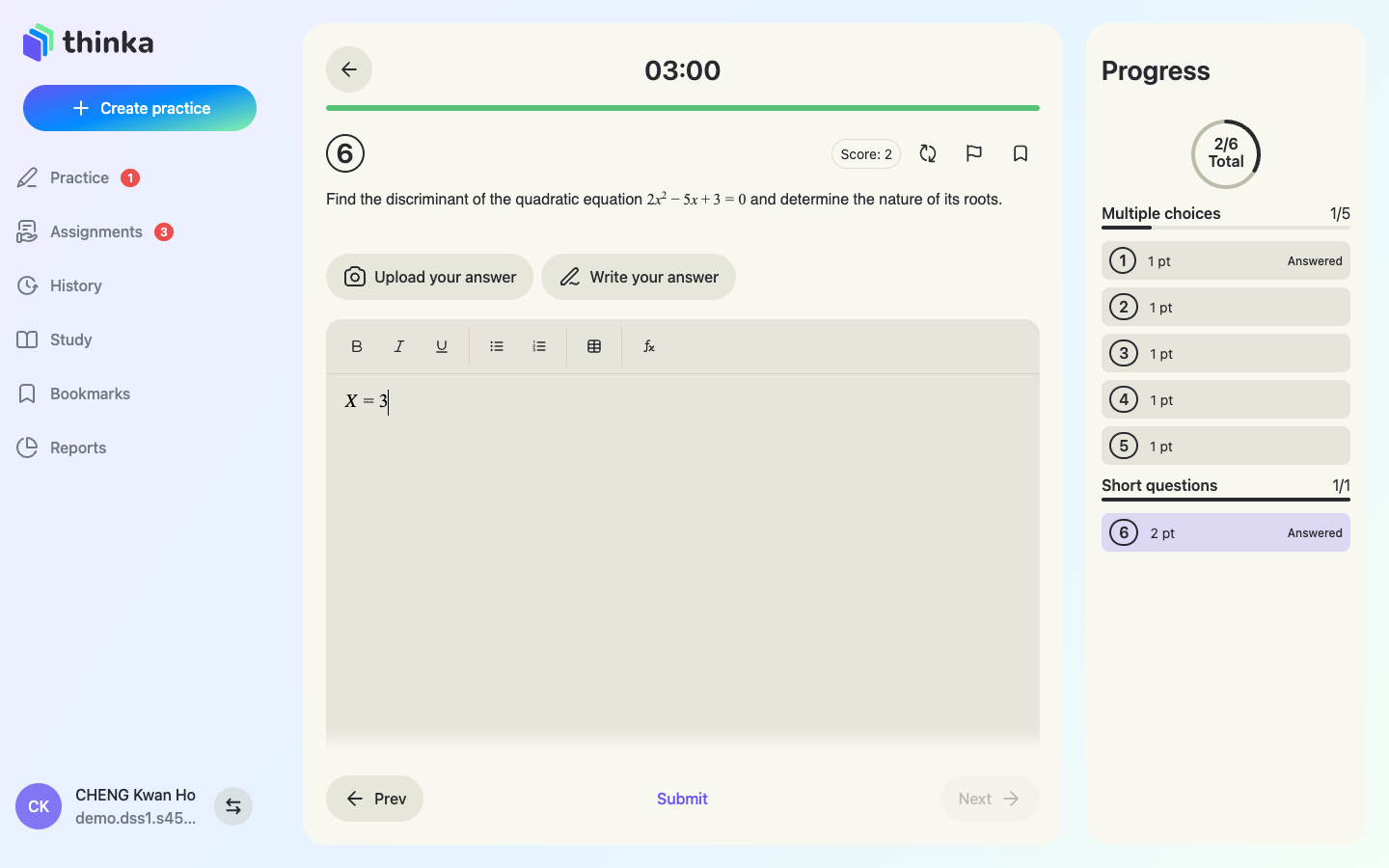
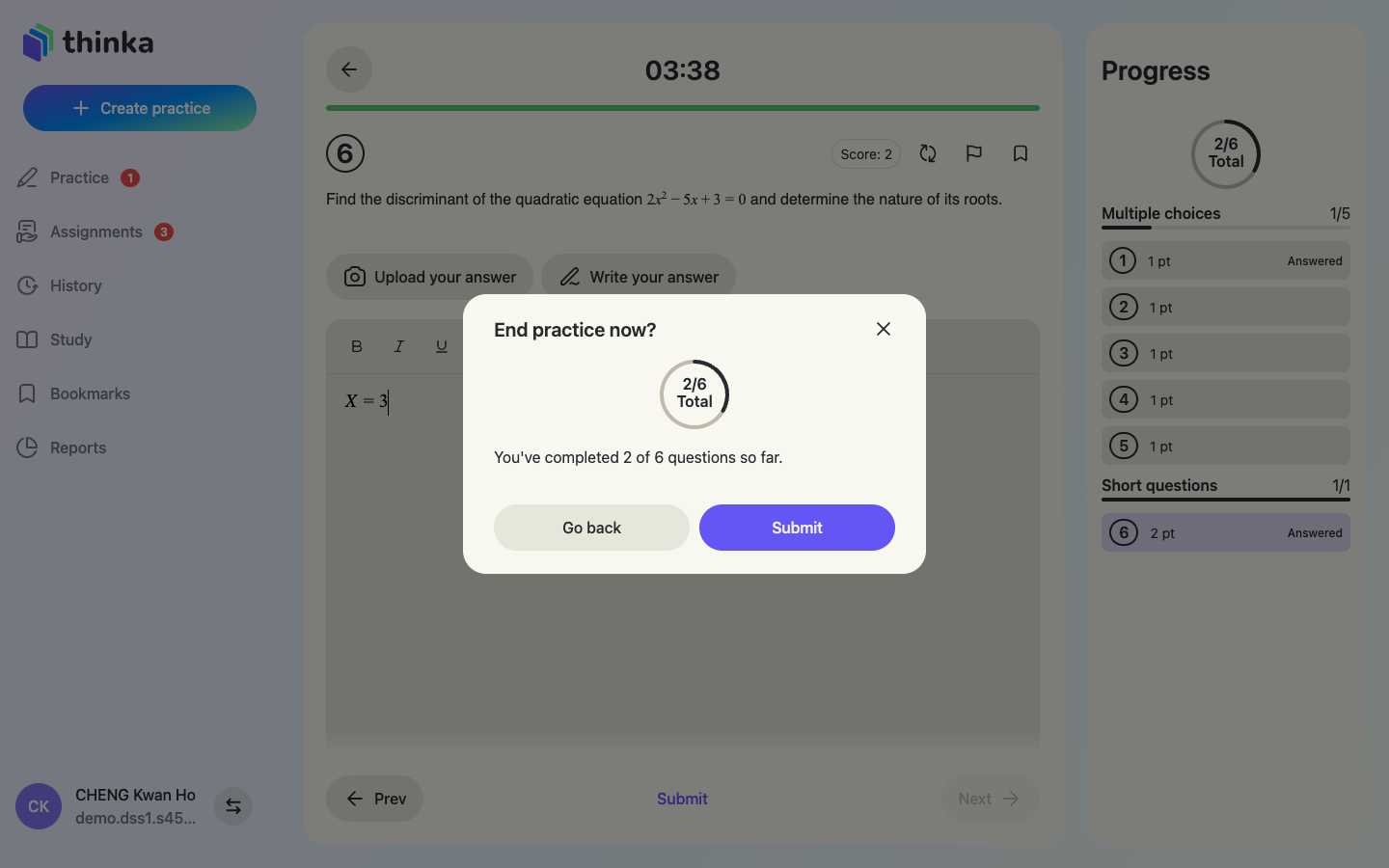
Submit
Press Submit — a summary confirms how many questions you've answered. Confirm, and the AI marks everything at once: multiple-choice instantly, written answers graded against the model solution with written feedback.
Section 5
Results, solutions & AI insights
Every finished practice or assignment gets a full report — not just a score.
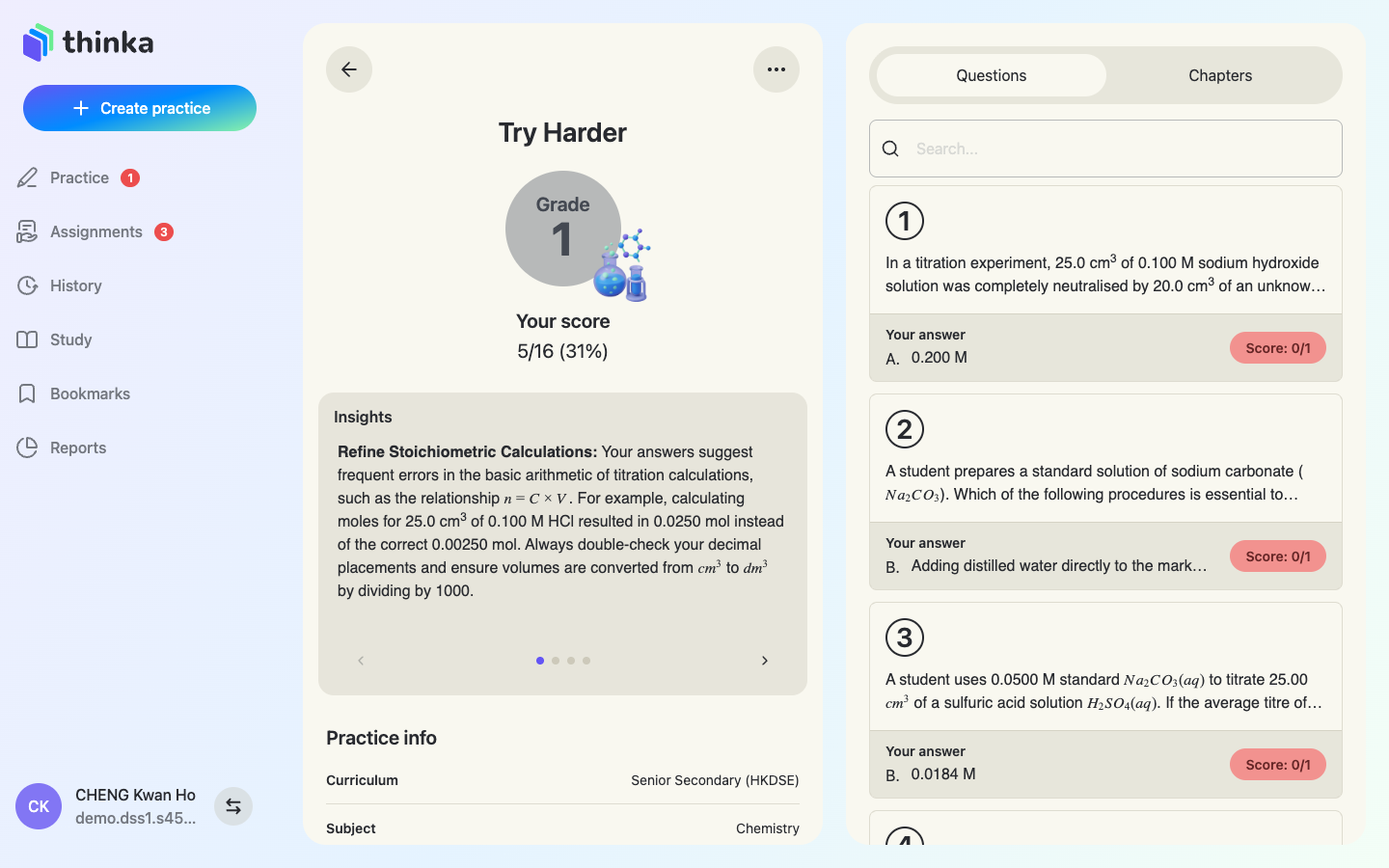
Your grade and AI insights
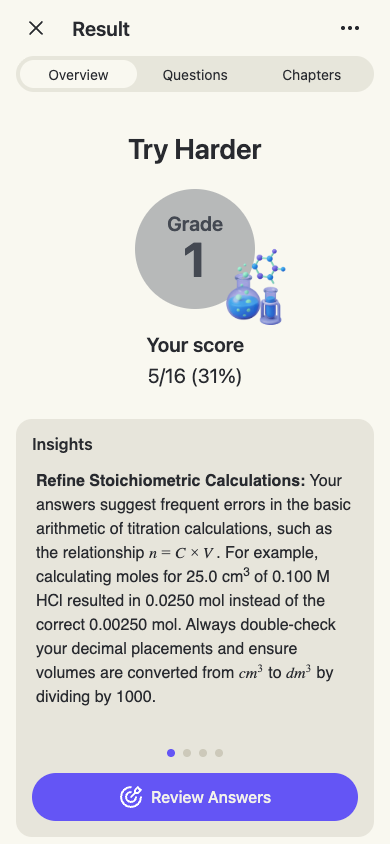
The result page shows your grade (mapped to your curriculum's scale, e.g. HKDSE 1–5) and score, followed by Insights** — AI-written analysis of your strengths, weaknesses and exactly what to fix next. Swipe through the cards.
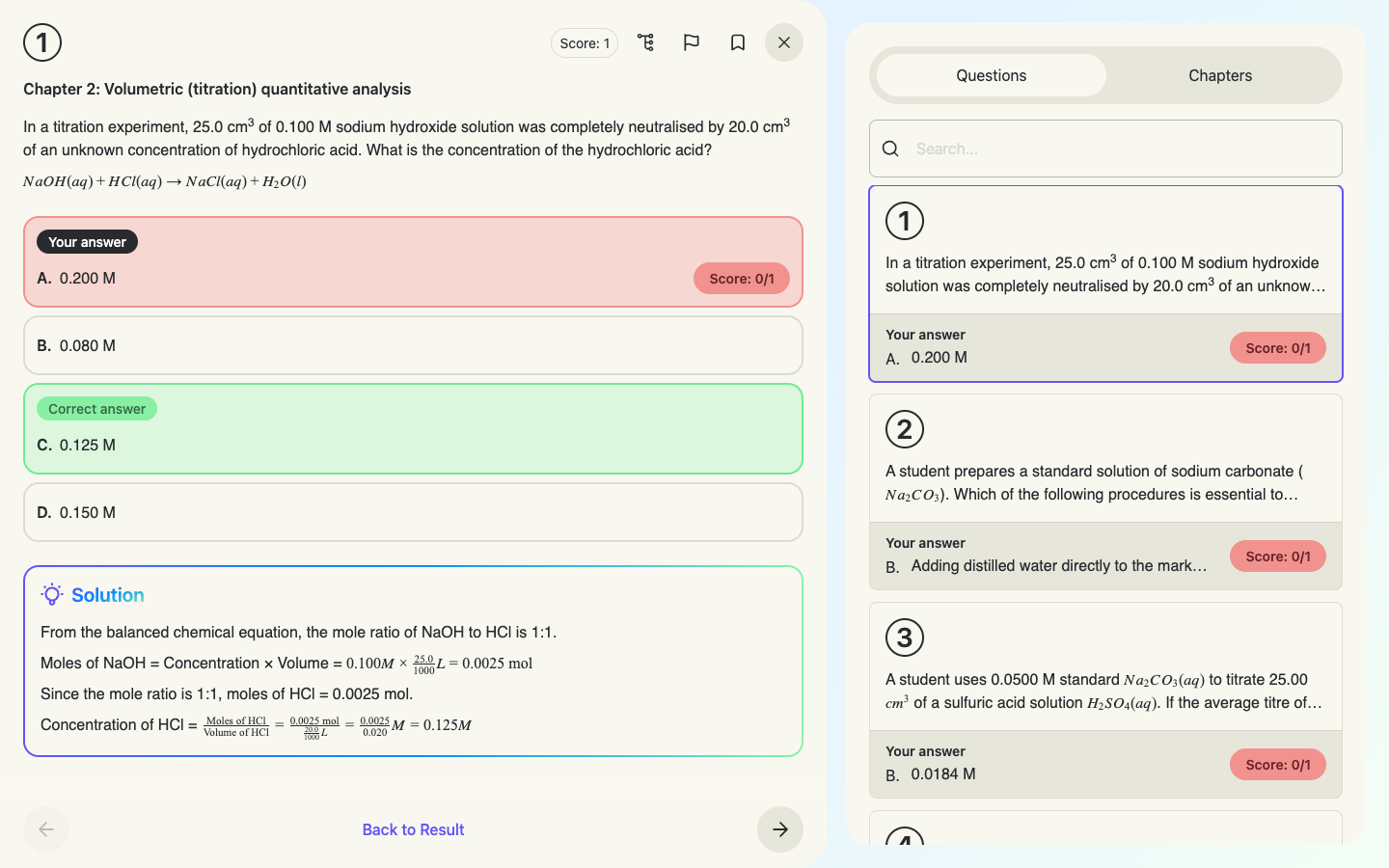
Every question, fully explained
Open any question to see your answer, the correct answer and a step-by-step Solution. For written questions the AI also leaves a comment on your working — what you did well and what to improve.
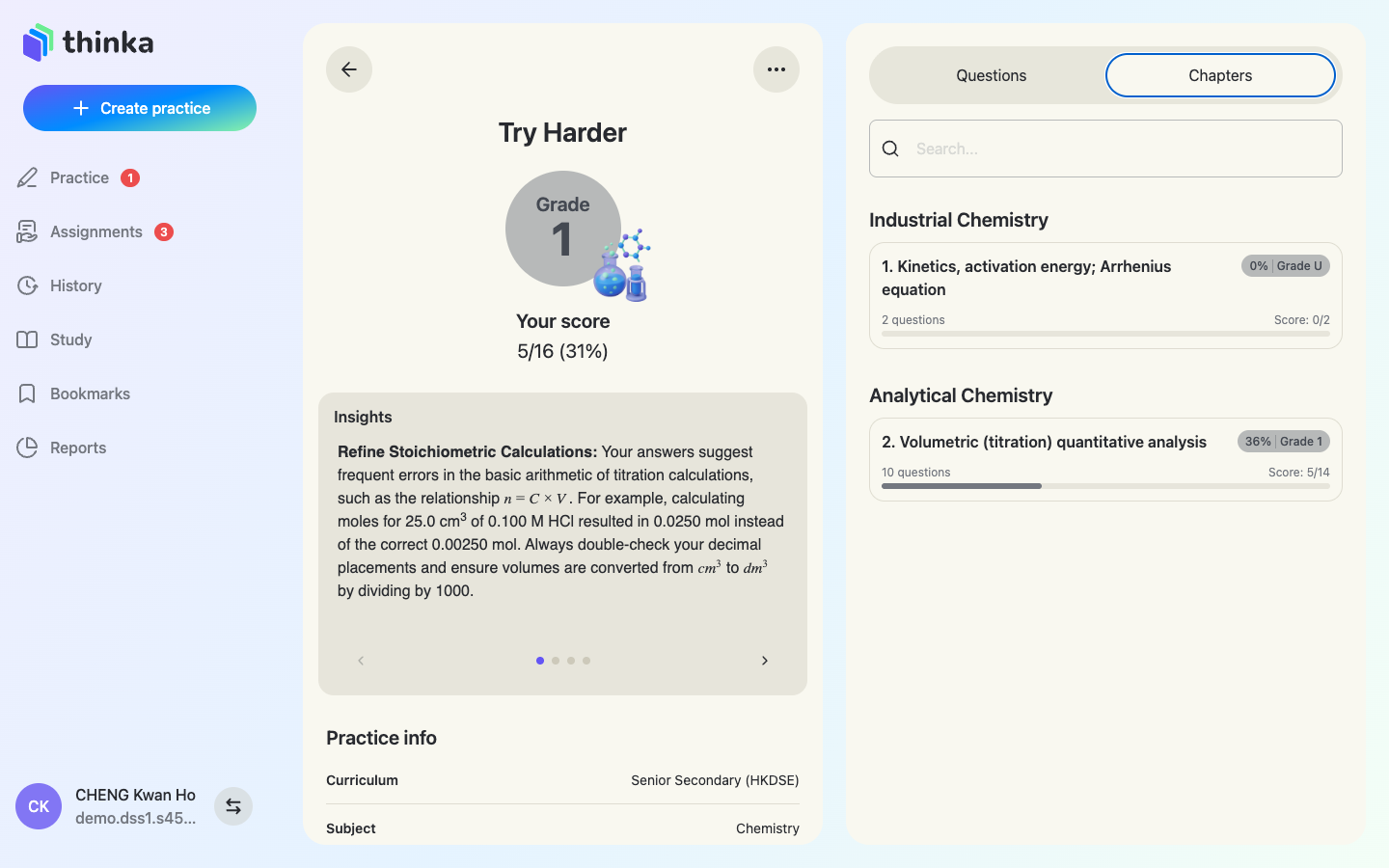
Performance by chapter
The Chapters tab groups your score by topic so you can see which chapters held you back.
Practise similar questions
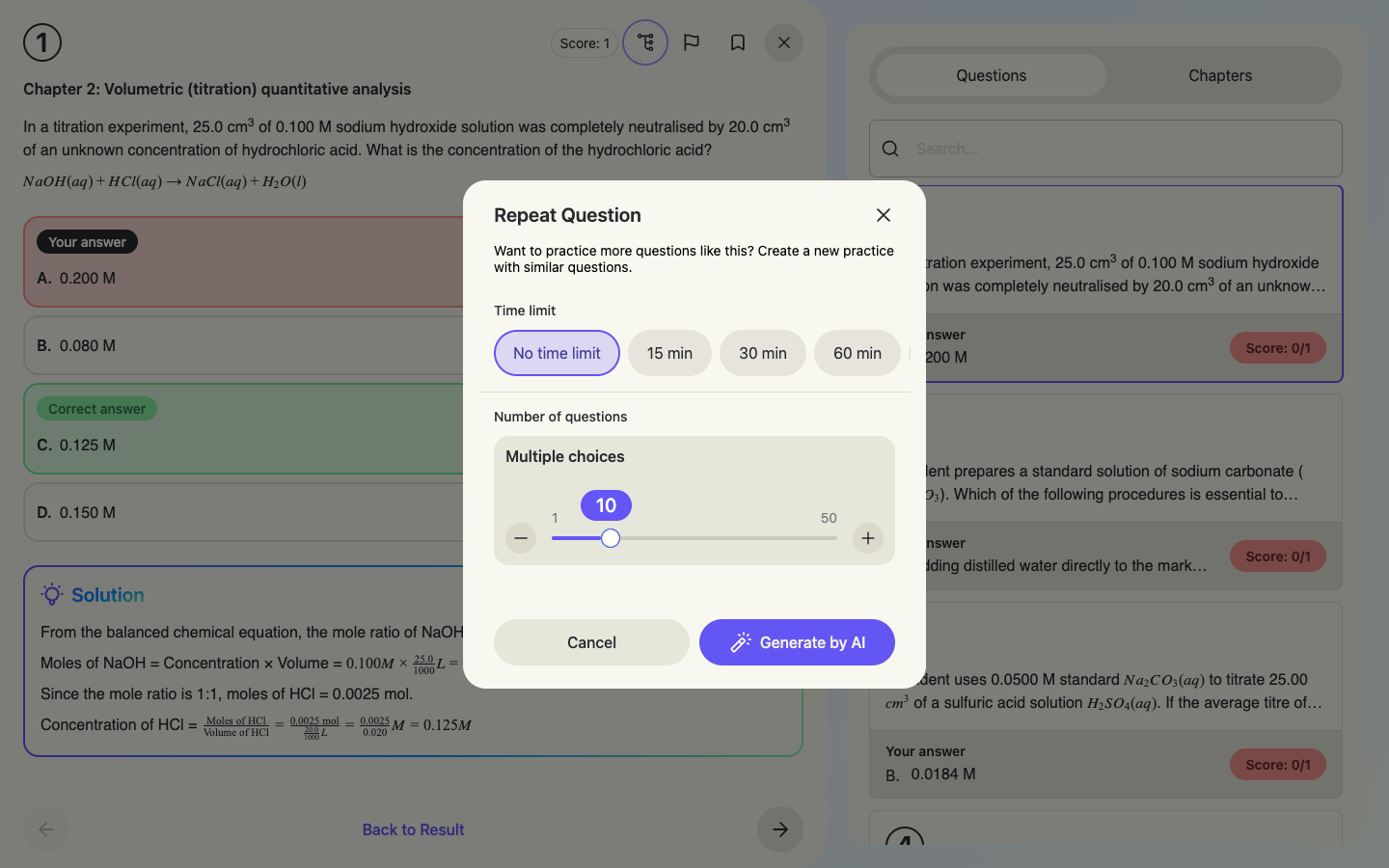
Struggled with one question? The 🔁 Repeat Question button generates a fresh practice full of similar questions — choose the amount and a time limit, then Generate by AI.
Report a question
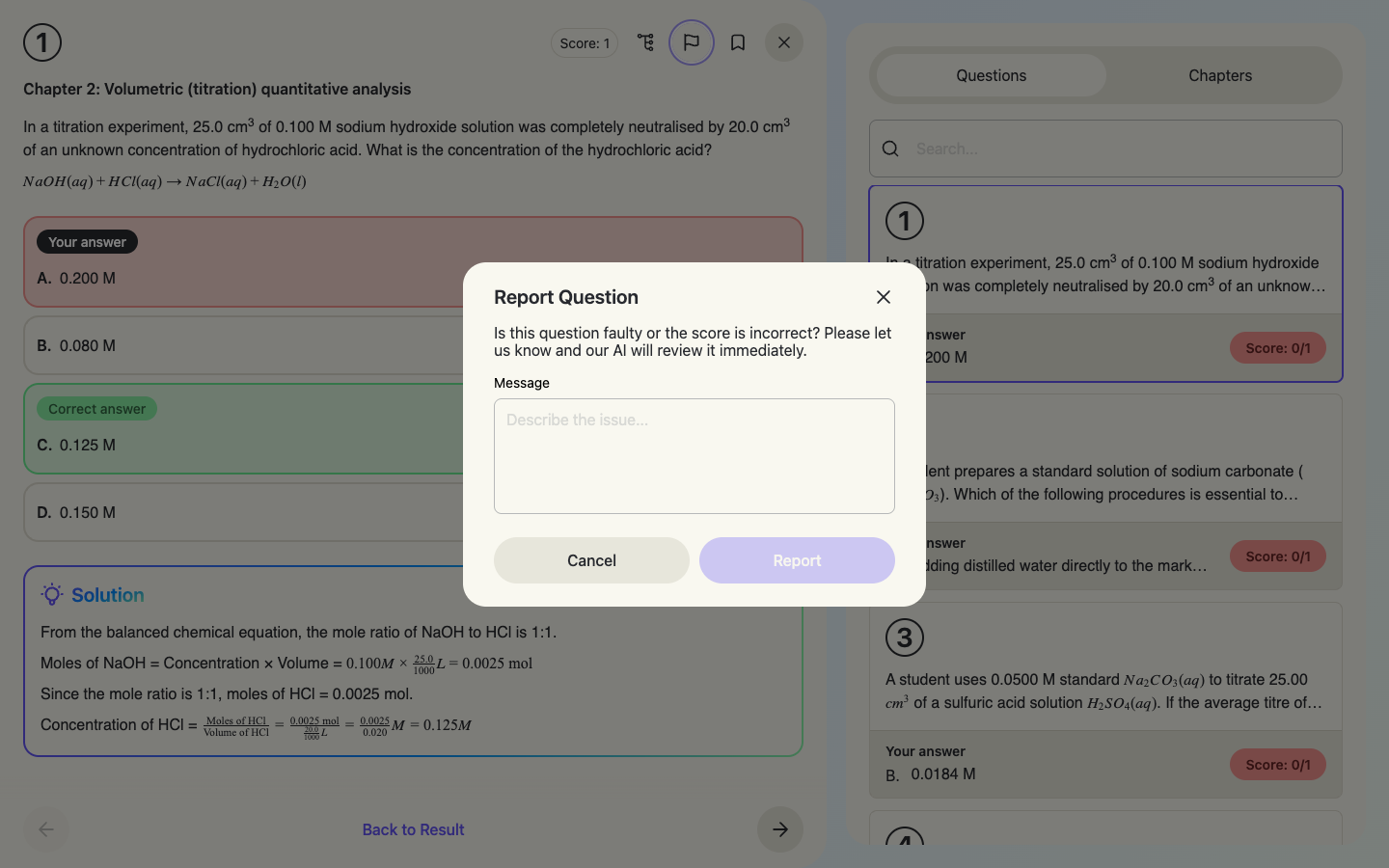
Think a question is faulty or the marking unfair? Press 🚩 Report Question, describe the issue, and AI reviews it immediately — it can correct answers, re-mark, or improve the solution.
Print, redo or delete
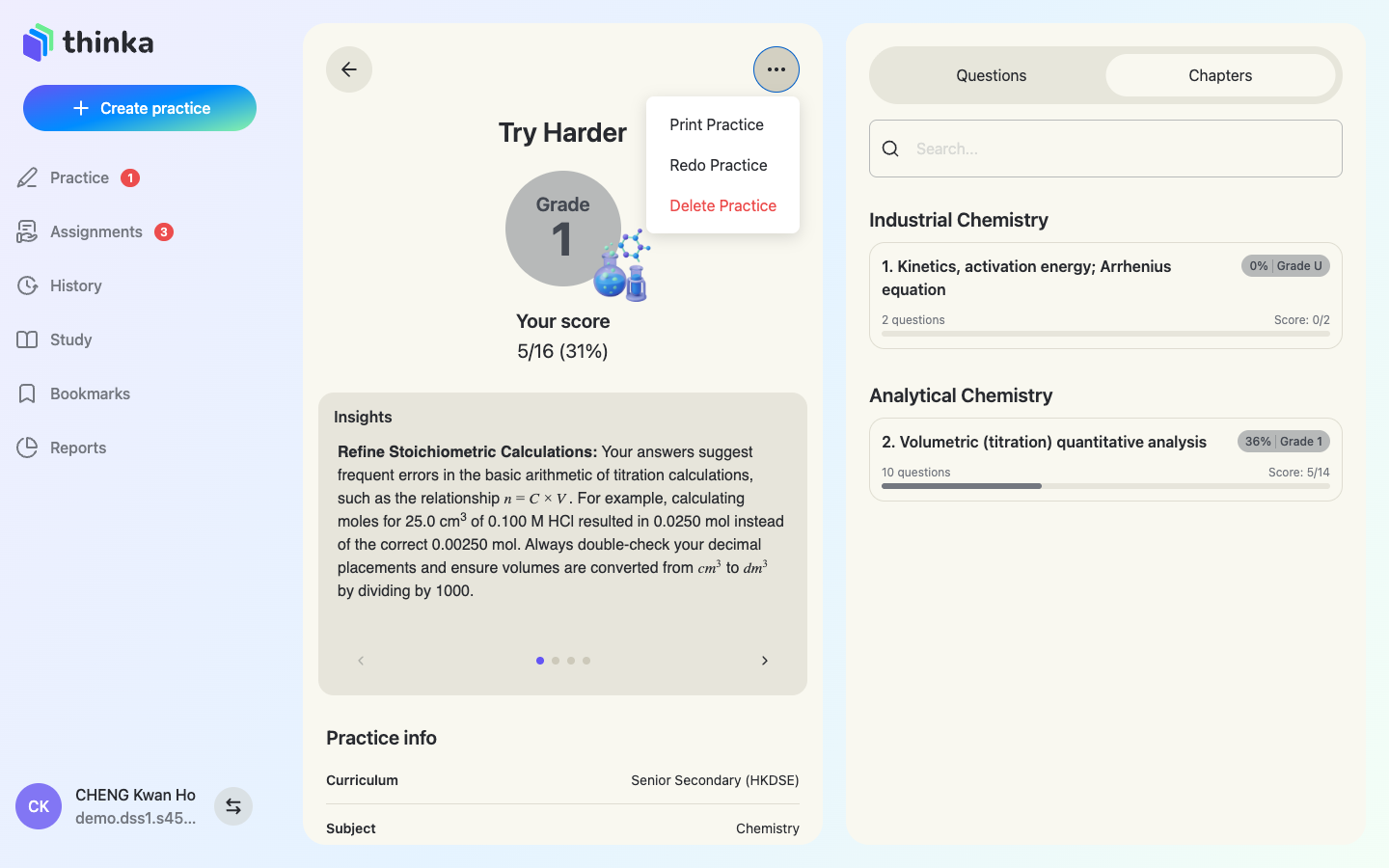
The ⋯ menu offers Print Practice (with or without solutions — great for offline revision), Redo Practice (retake the same questions) and Delete Practice.
Your full history
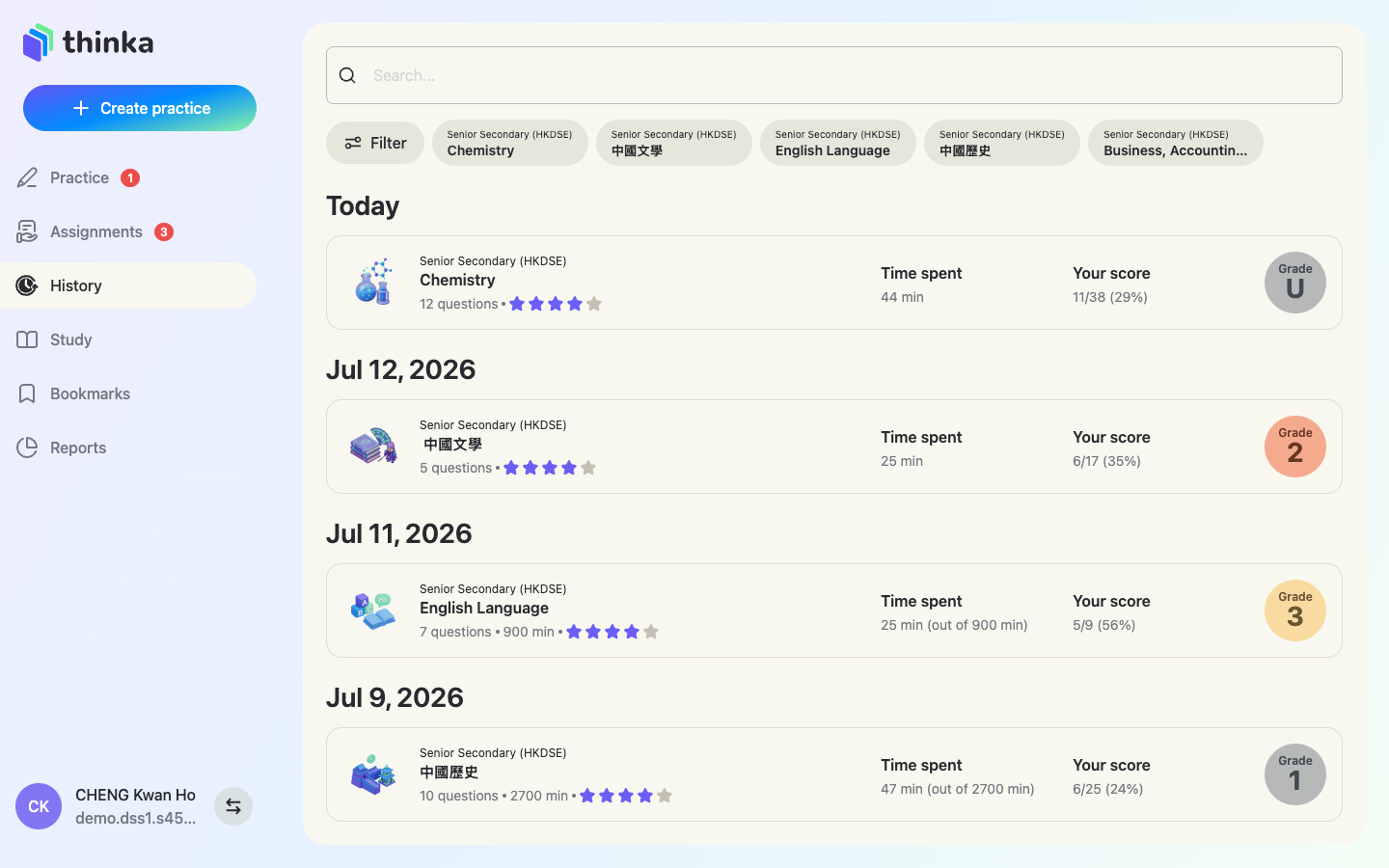
History keeps every assignment and practice you've ever done, grouped by date with scores and grades. Tap any entry to revisit its result, answers and solutions.
Section 6
Study: notes, summaries & flash cards
The Study tab is a complete revision library for every subject in your curriculum — no practice required.
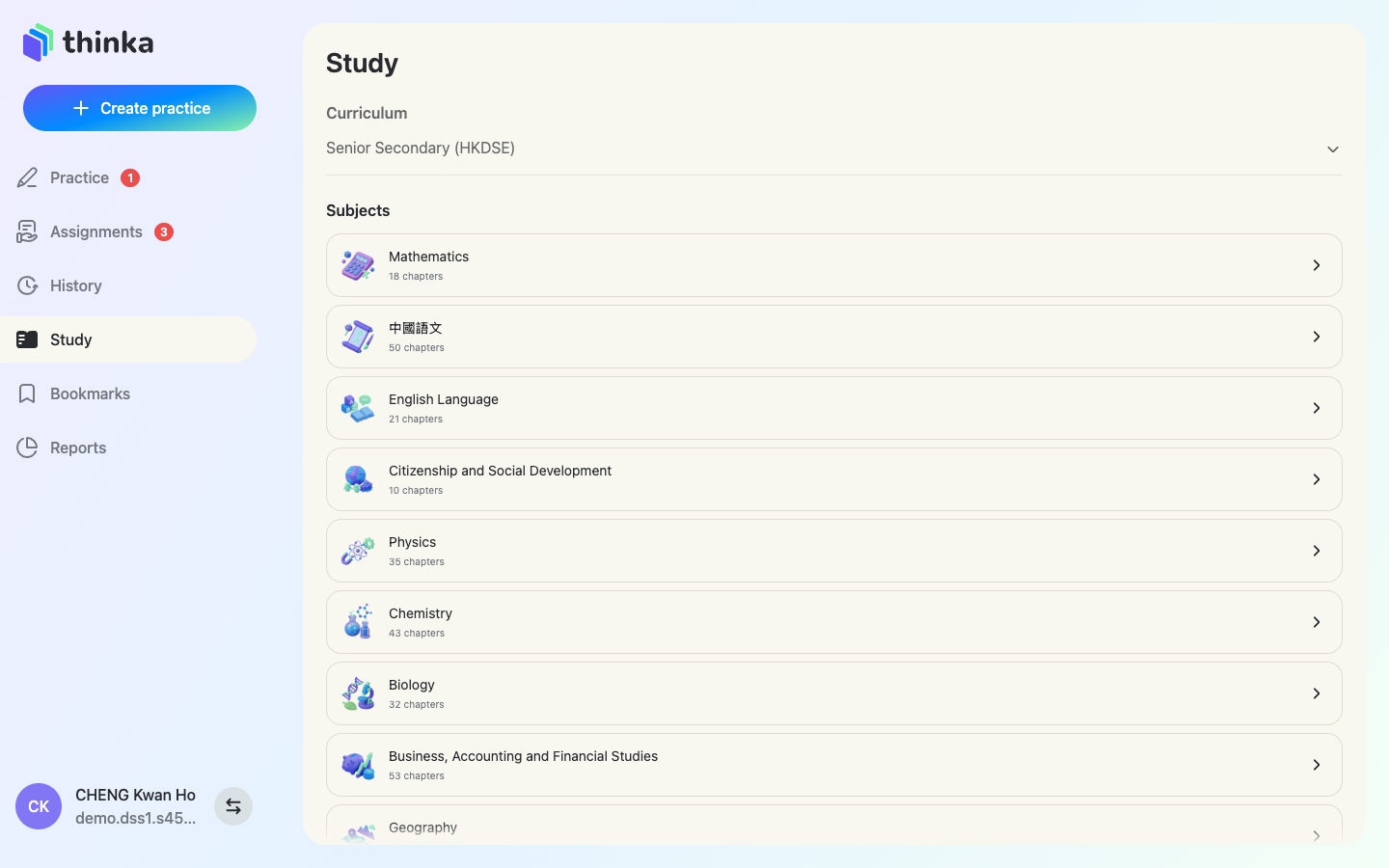
Browse subjects & chapters
Choose your curriculum once, and every subject appears with its full chapter list. Recent chapters and subjects float to the top for quick access.
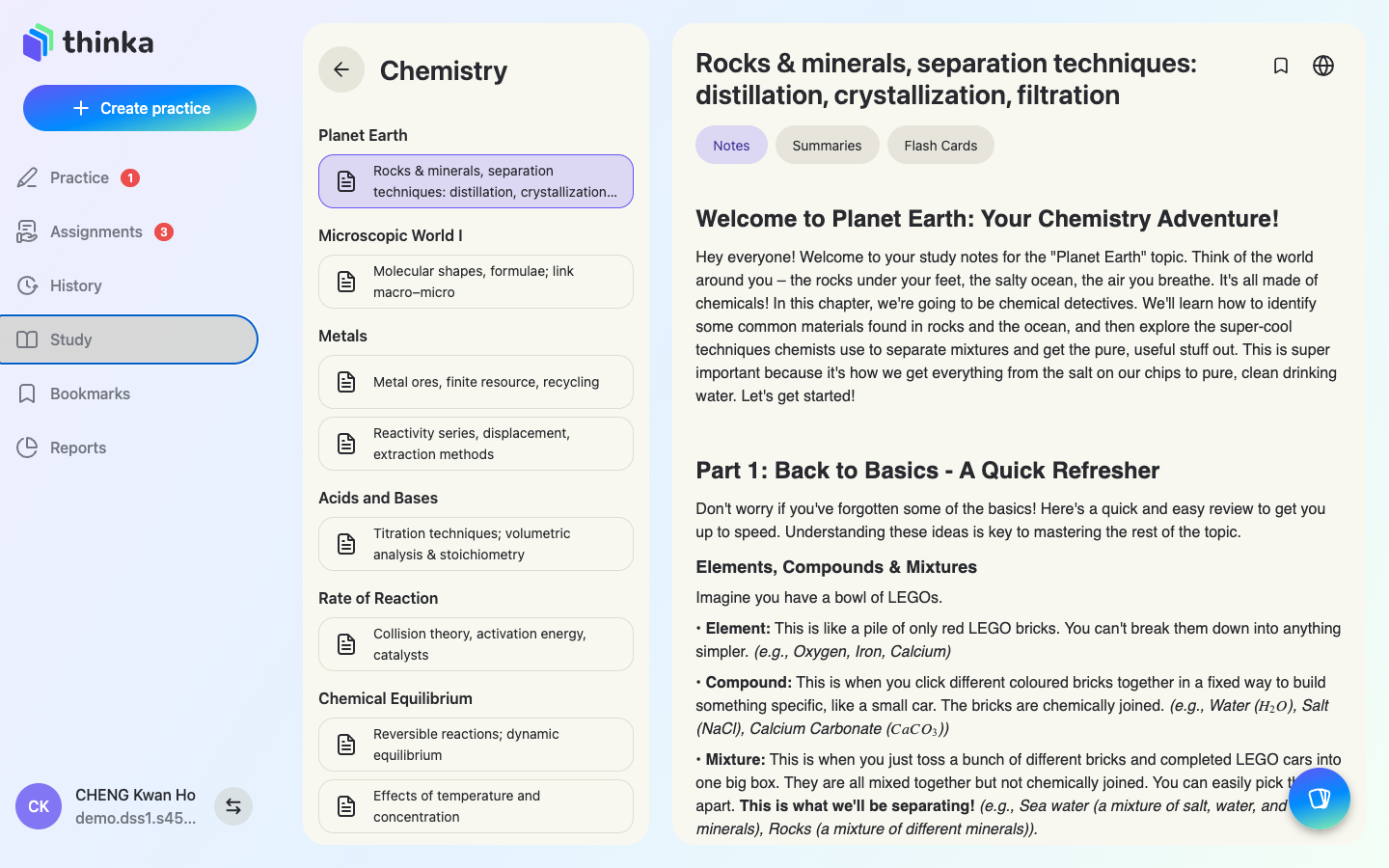
Chapter notes
Every chapter has friendly, thorough Notes written for self-study — concepts, worked examples and mnemonics, with full math rendering. Use the 🌐 button to switch the notes' language.
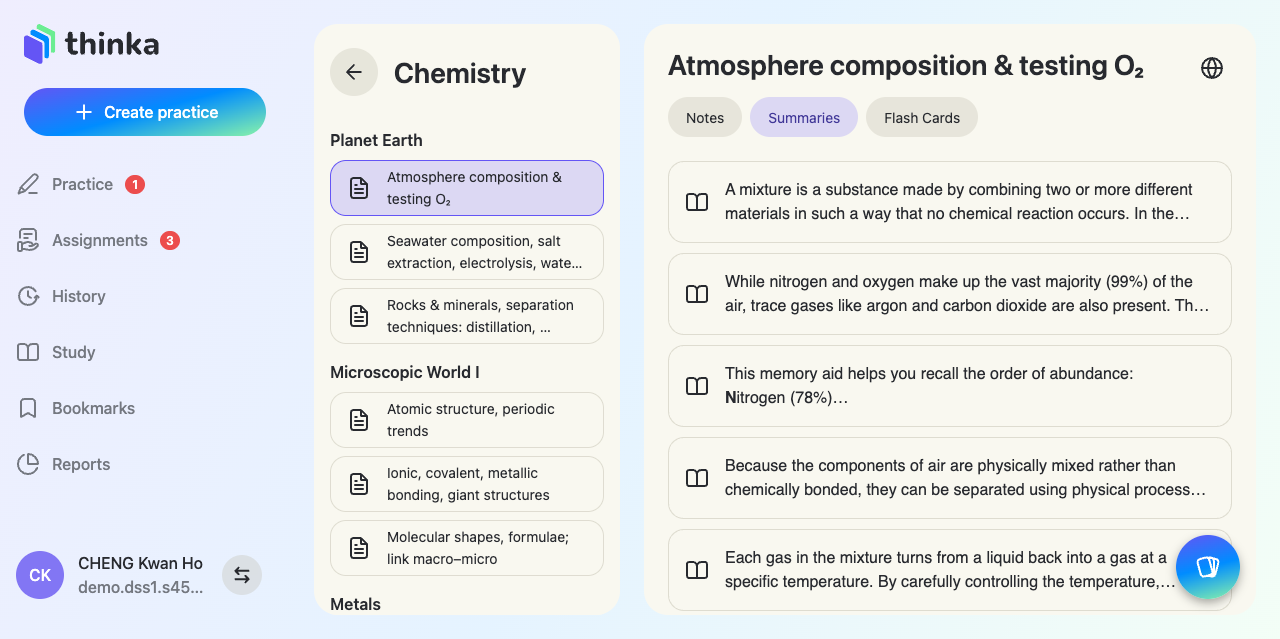
Summaries for quick revision
The Summaries tab condenses the chapter into key points — ideal right before a test.
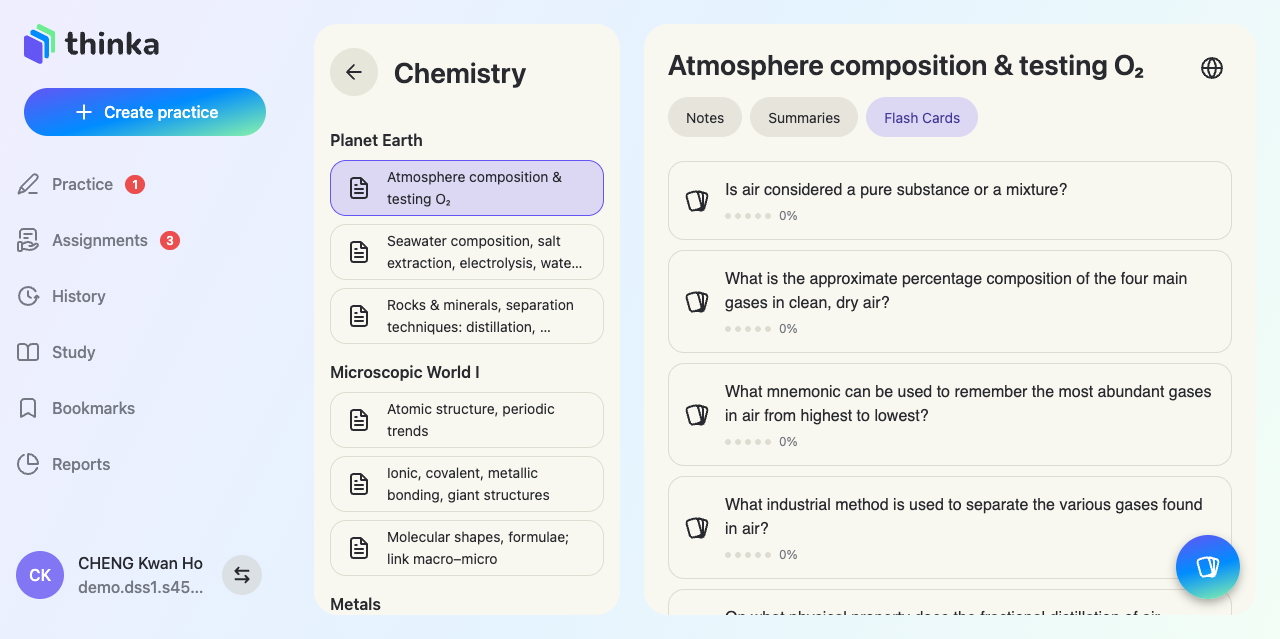
Flash cards
The Flash Cards tab lists question-style cards for the chapter, each tracking your mastery. Press the floating card button to start a review session.
Start a review session
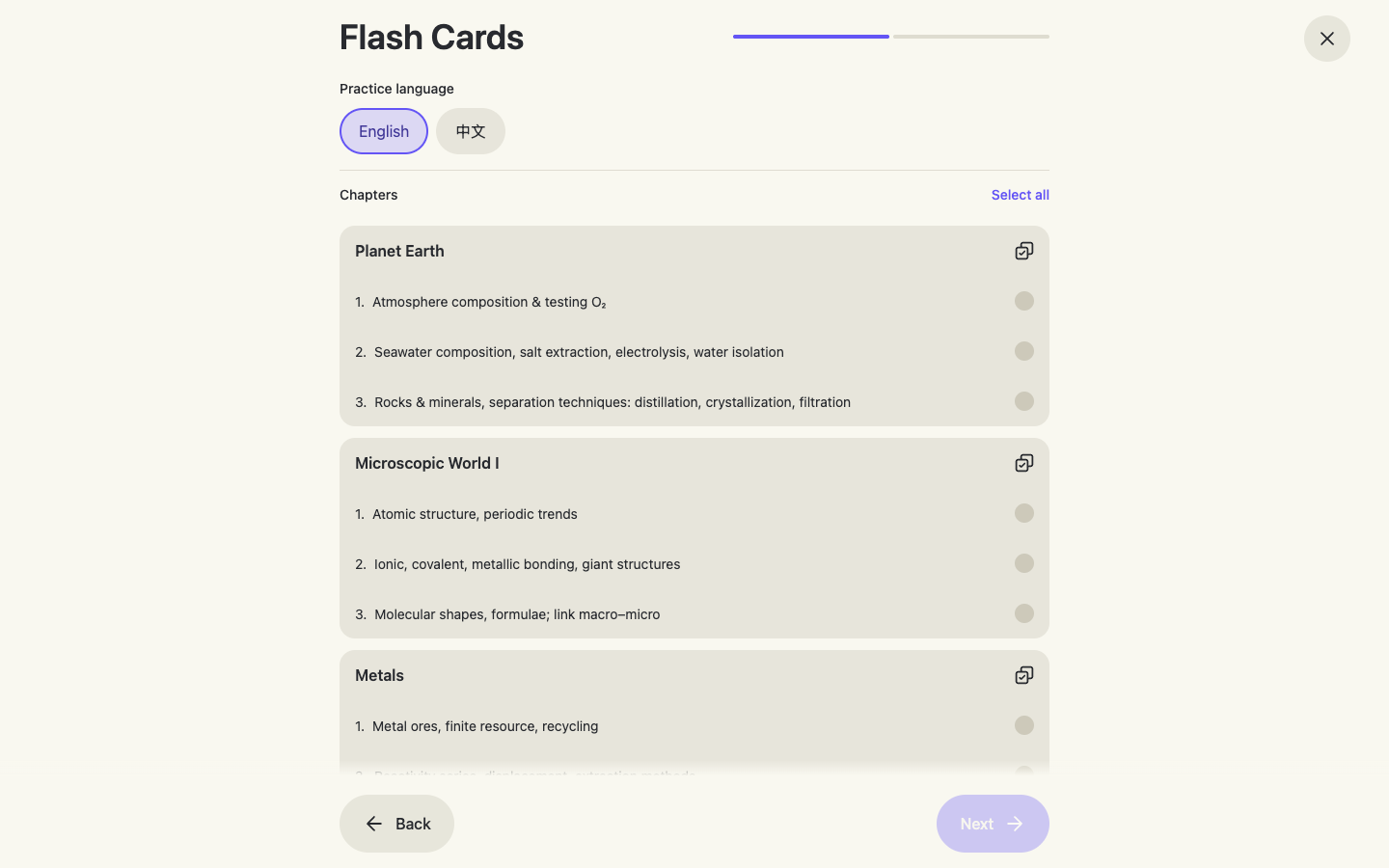
The floating card button opens the session builder — pick the practice language and any mix of chapters (or Select all), then Next to build your deck.
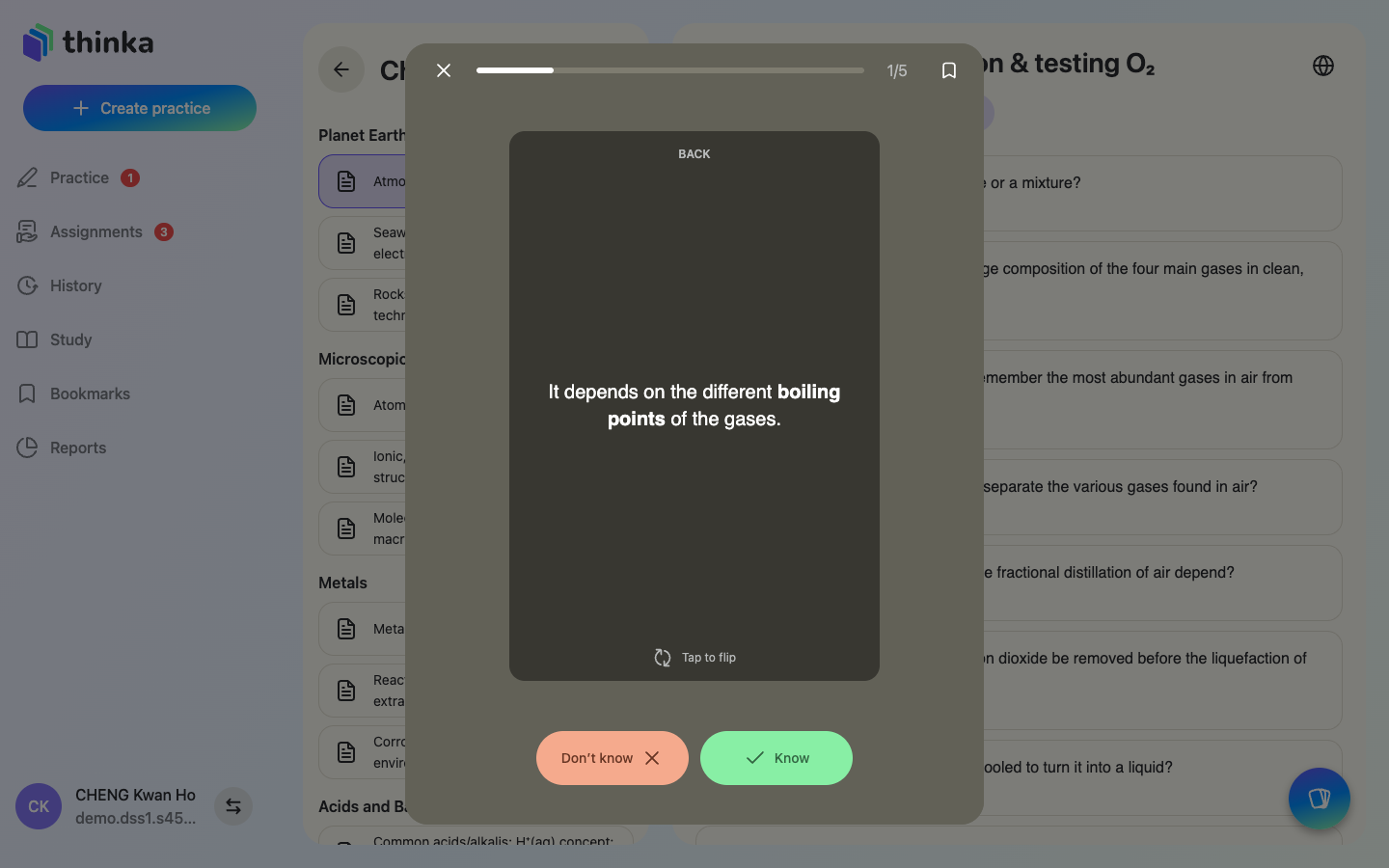
Self-testing with flash cards
Read the front, think of the answer, then Tap to flip. Mark yourself honestly with Know / Don't know — the session summary tells you when to review again to keep the knowledge fresh (spaced repetition).
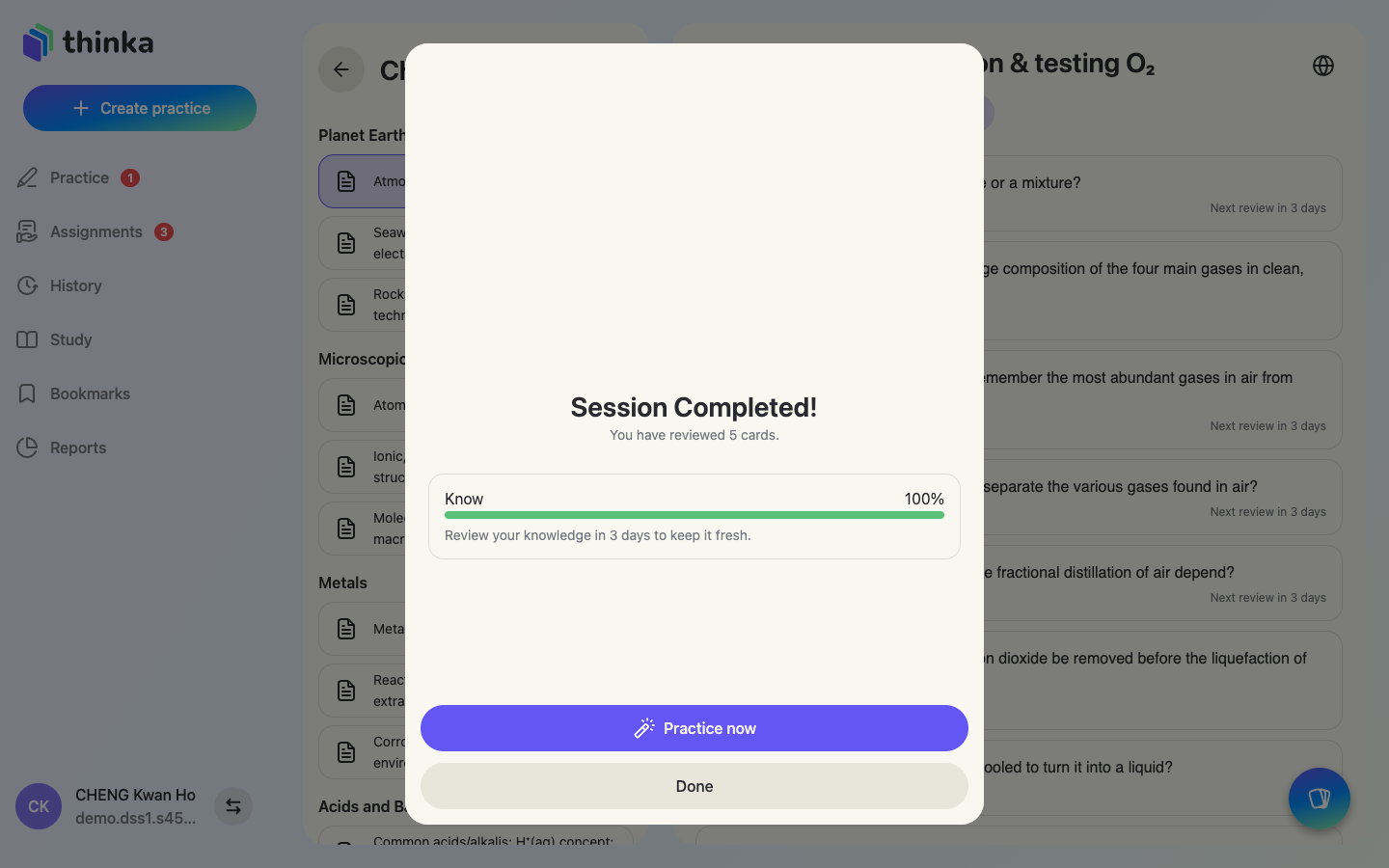
Session completed
Finish the deck to see your session stats. Practice now turns the same chapter into a full AI practice on the spot.
Section 7
Reports: track your progress
The overview
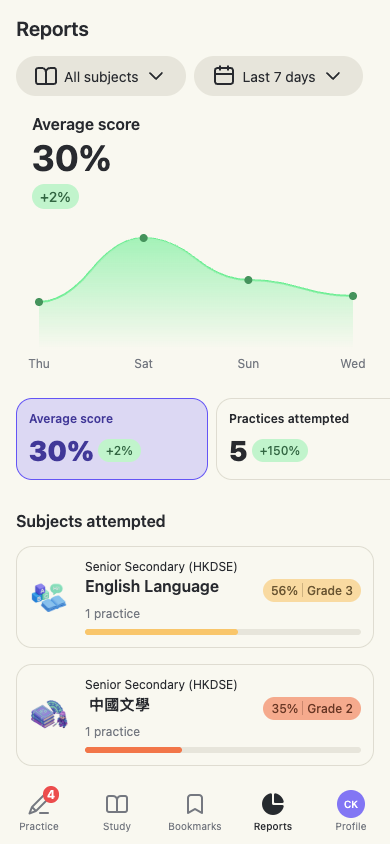
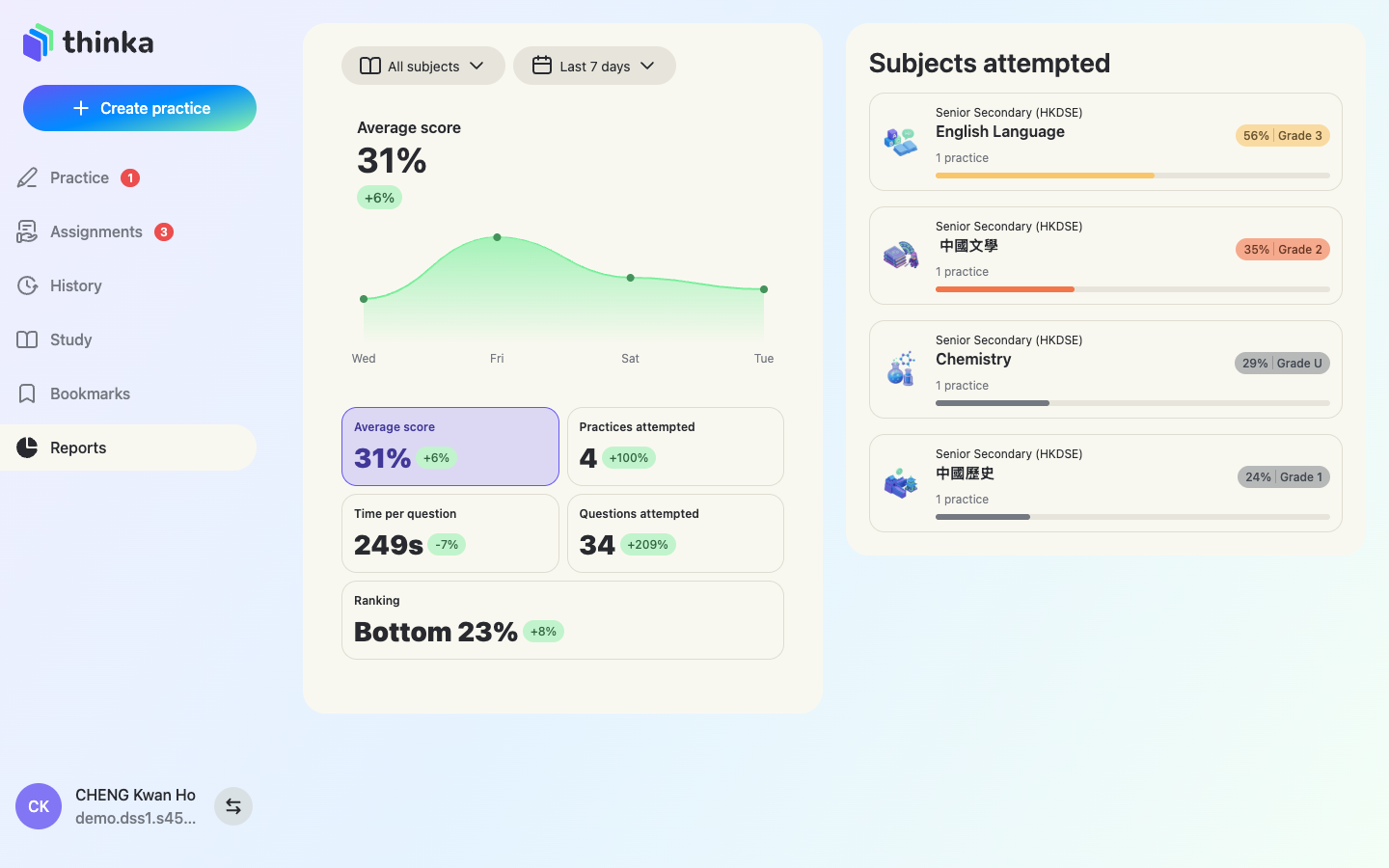
Reports charts your average score over time, with cards for practices attempted, time per question, questions attempted and your ranking among thinka students. Filter by subject and period (last 7 / 30 days, custom).
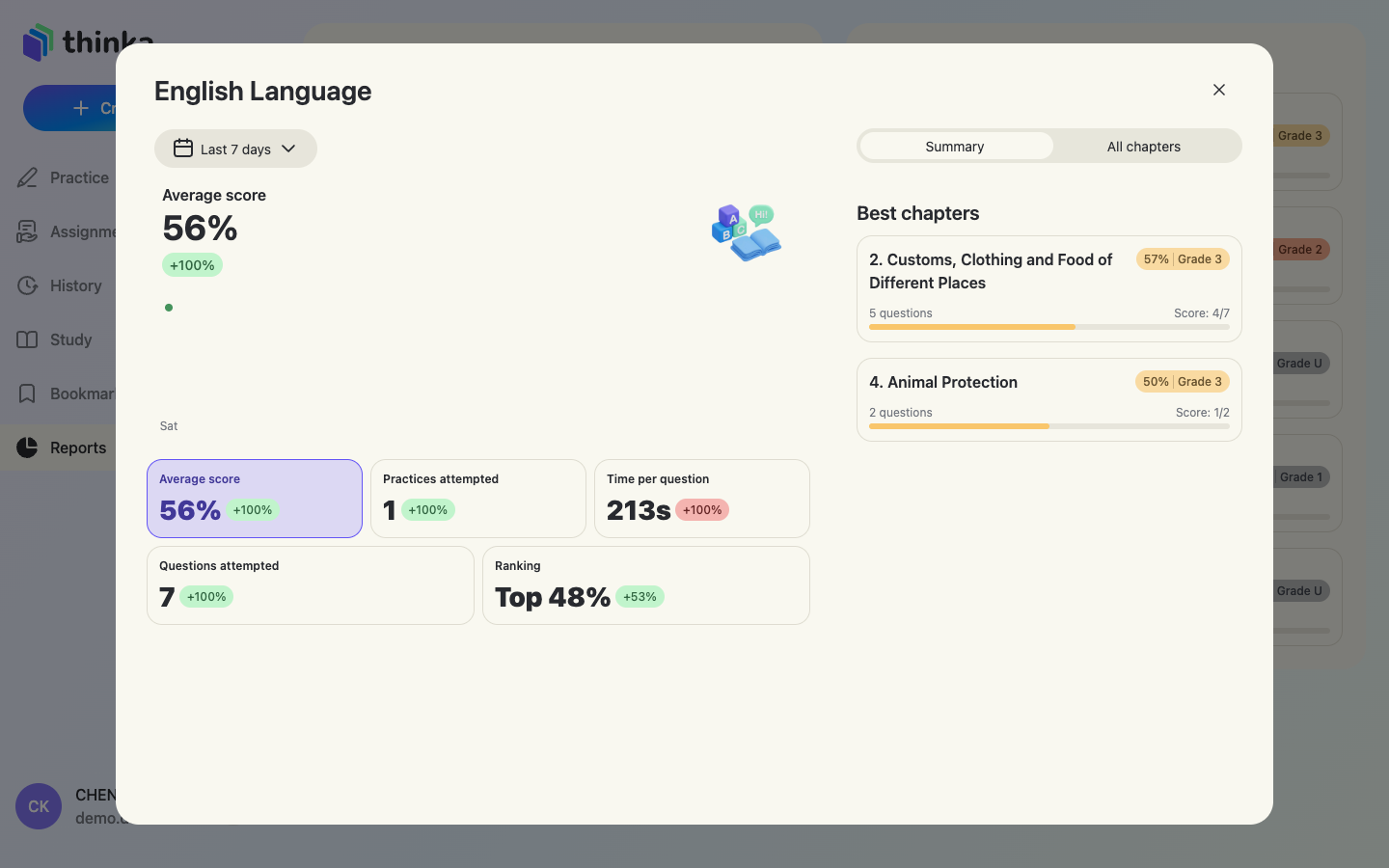
Drill into a subject
Tap any subject in Subjects attempted for its own report: score trend, KPIs, plus best and weakest chapters so you know exactly where to spend your next practice.
Section 8
On your phone
Get the thinka app: search thinka on the App Store or Google Play, or open https://thinka.ai/download on your phone. Everything works on the go — practise on the bus, revise flash cards before bed.
The whole app in your pocket
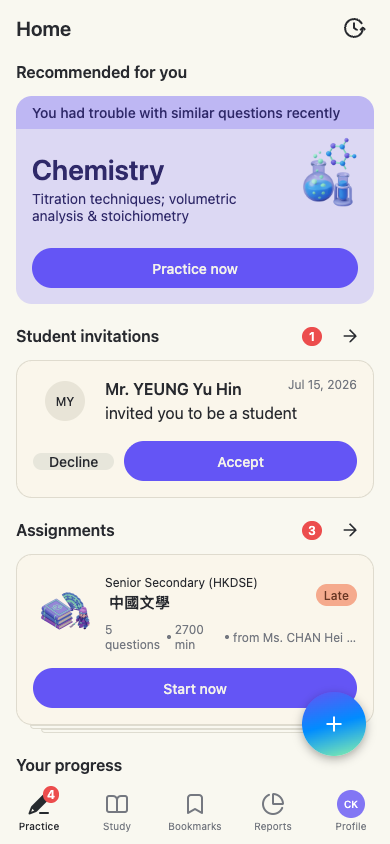
The mobile home mirrors the desktop: recommendations, teacher invitations, assignments and progress — with Practice, Study, Bookmarks, Reports and Profile tabs along the bottom.
Answering questions on mobile
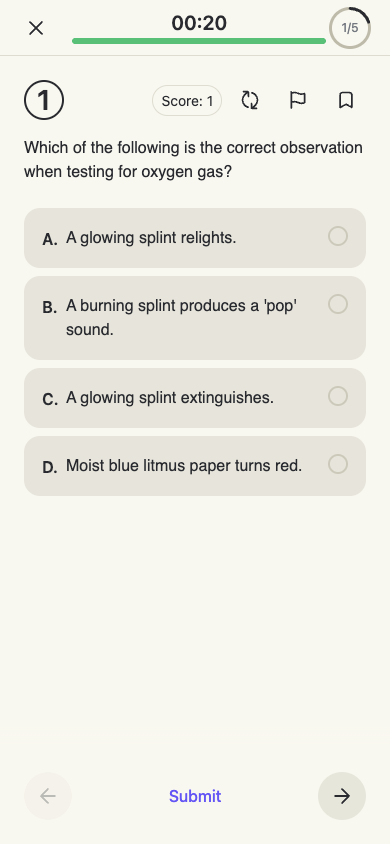
The practice screen fits a phone perfectly — timer at the top, one question at a time, progress a tap away and Submit when you're done. Hand-write answers with your finger.
Results & insights on mobile
Grades, AI insights and full solutions read comfortably on a phone screen.
Study & reports on mobile
The Study library and your progress reports are one tab away, anywhere.