
Workspaces, Custom Domain & Phone Install
Switching between personal and school workspaces, the school's own branded domain, installing thinka on a phone, and troubleshooting.
Section 1
Switching workspace (personal ↔ school)
Teachers and students who already had a personal thinka account keep it when they join a school. The same login then has two workspaces: the school workspace (school data, school reports) and the personal workspace (their own private content). Data never mixes between the two.
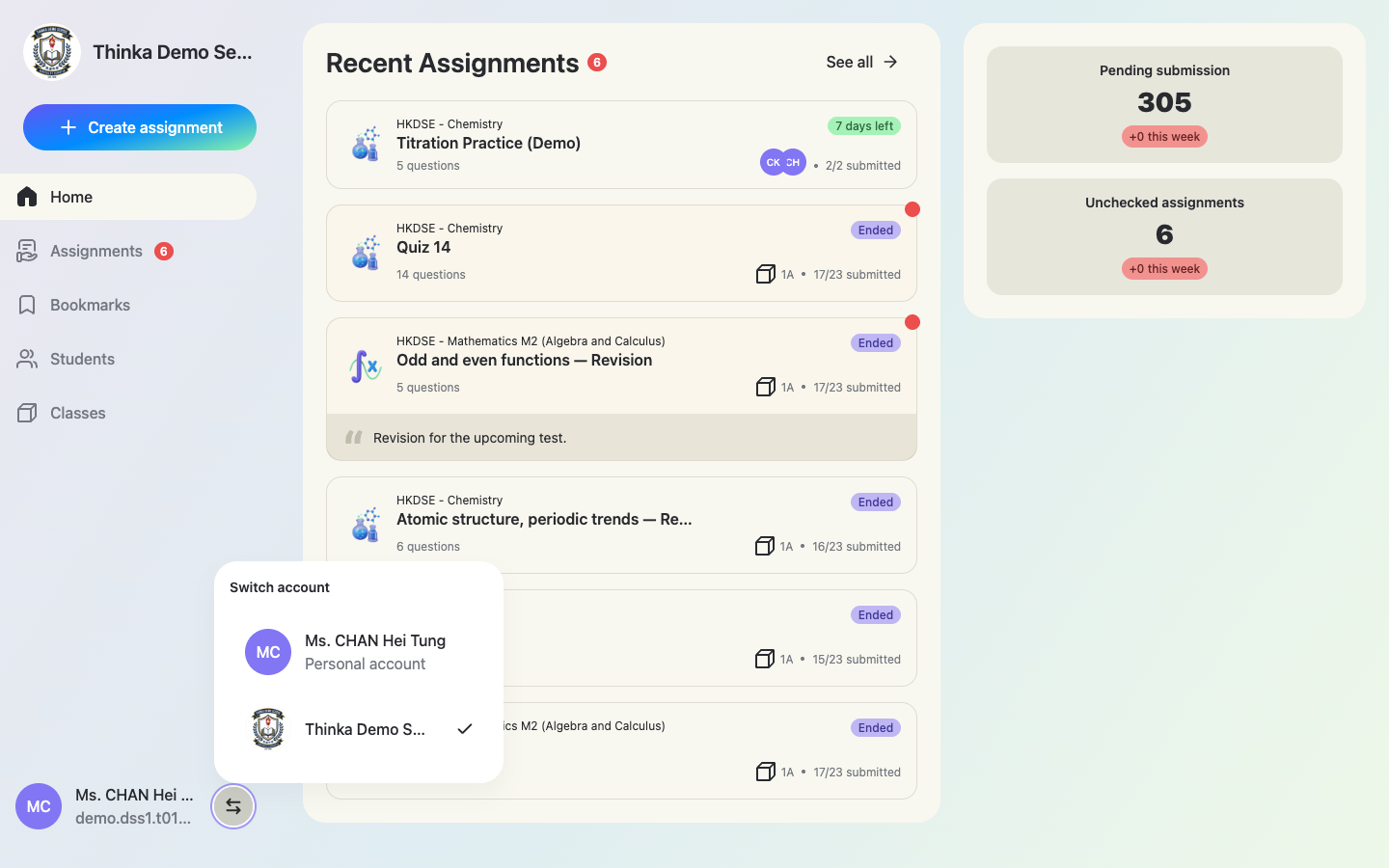
Use “Switch account” at the bottom of the sidebar
On app.thinka.ai, click the switch icon next to your name. A menu lists your personal account and every school you belong to — the tick marks the active workspace.
The personal workspace
In the personal workspace the sidebar shows the thinka logo instead of your school's, and you only see your own content. Everything you create here is invisible to the school.
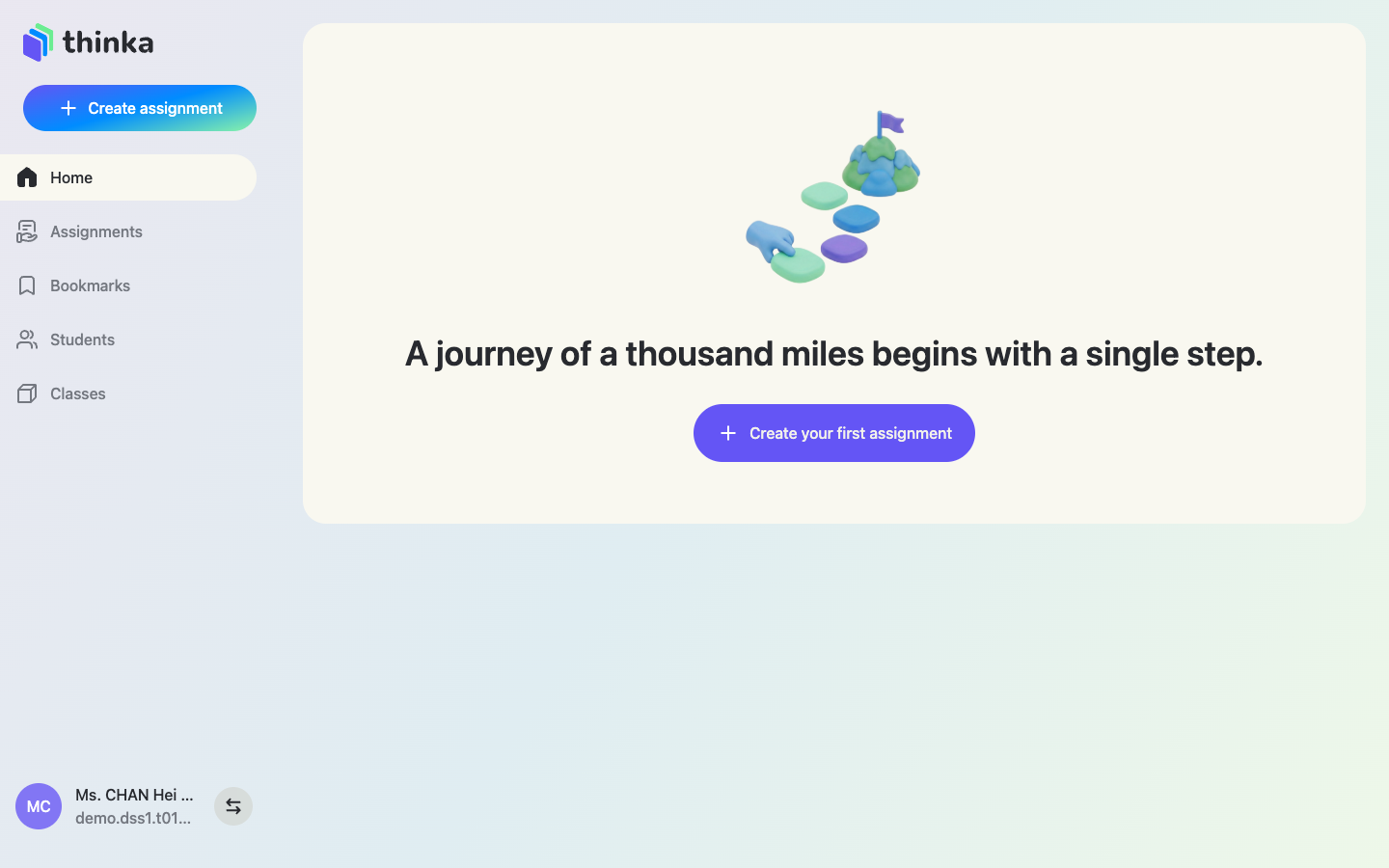
First sign-in convenience: if you belong to a school and your personal workspace is empty, thinka automatically lands you in the school workspace.
Section 2
Custom school domain
Every school can have its own address in the form <school>.app.thinka.ai (e.g. your-school.app.thinka.ai). Admins, teachers and students can all sign in there.
School branding everywhere
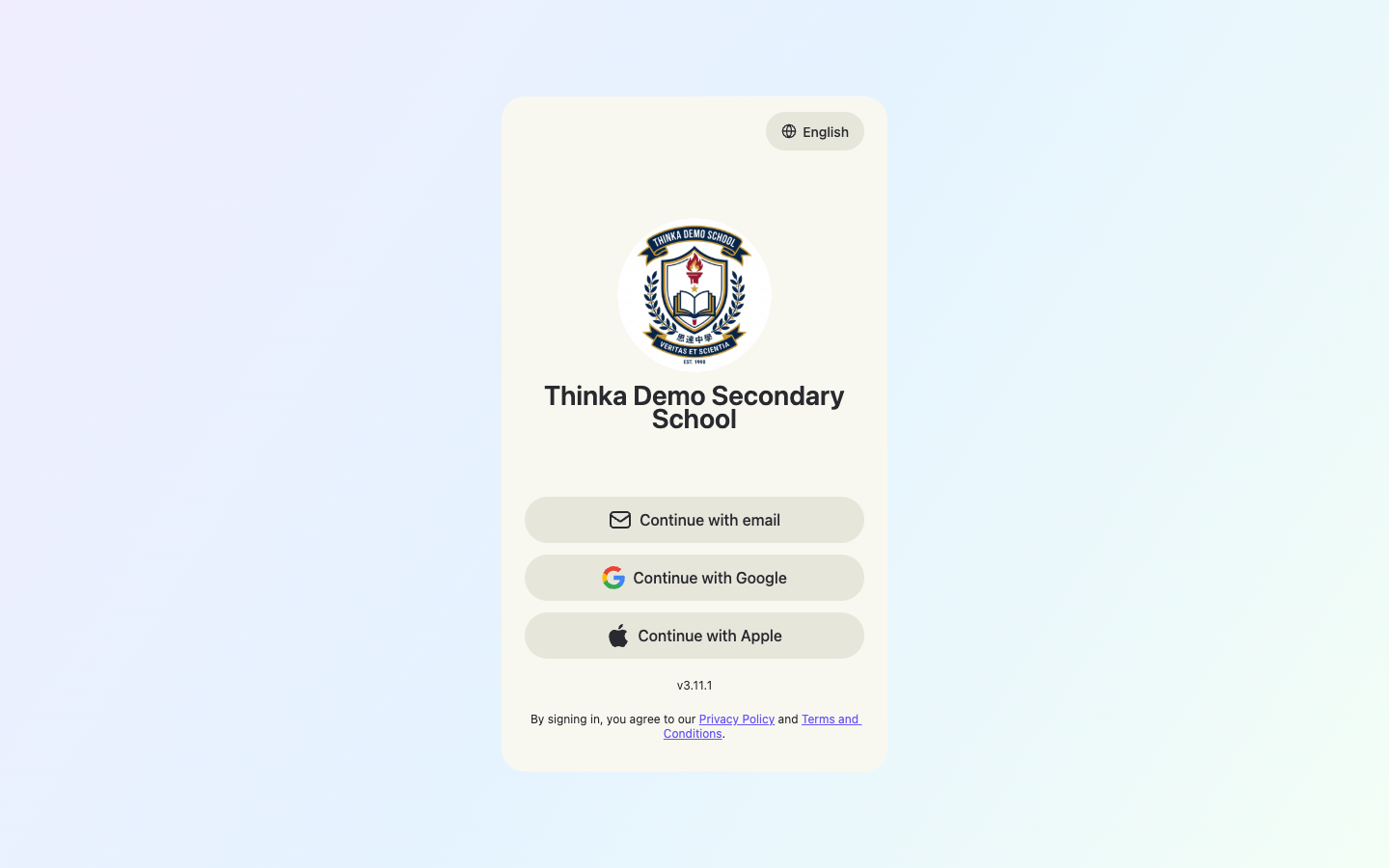
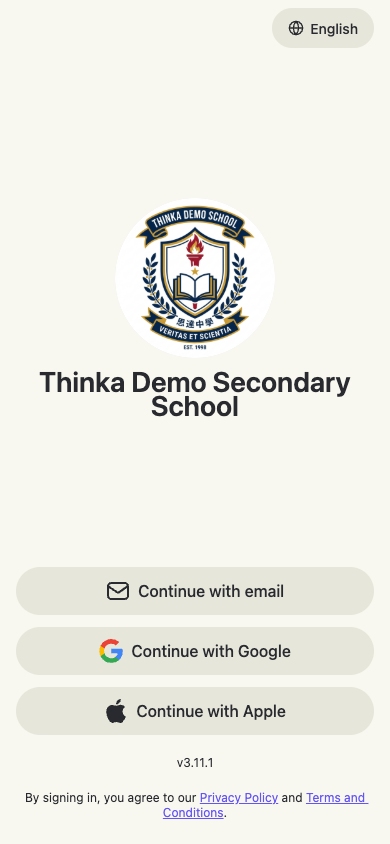
On the school domain, the sign-in page, browser tab title and favicon all use your school's logo and name (from School profile).
Locked to the school workspace
The school domain is pinned to that school: there is no workspace switcher, and only school members can sign in — a clean, distraction-free environment ideal for classroom use. Personal workspaces remain available on app.thinka.ai.
Sign-ins are per address: logging in at app.thinka.ai does not log you in at yourschool.app.thinka.ai (and vice versa). This is a browser security behaviour — just sign in once on each address you use.
Section 3
Install on your phone (iOS / Android)
The school domain can be added straight to the phone's home screen — no App Store needed. It then opens full-screen with the school's own icon and name, just like a school-branded app. (Personal accounts can simply get the thinka app: search thinka on the App Store / Google Play, or open https://thinka.ai/download.)
Open the school domain on the phone
In the phone's browser, go to your school's address, e.g. https://your-school.app.thinka.ai, and sign in.
iOS (Safari): Add to Home Screen
1. Tap the Share button (square with an up arrow).
2. Scroll and tap Add to Home Screen.
3. The name and icon default to your school's — tap Add.
Android (Chrome): Install app
1. Tap the ⋮ menu in the top-right corner.
2. Tap Add to Home screen (or Install app).
3. Confirm — the school icon appears on your home screen.
An app-like experience
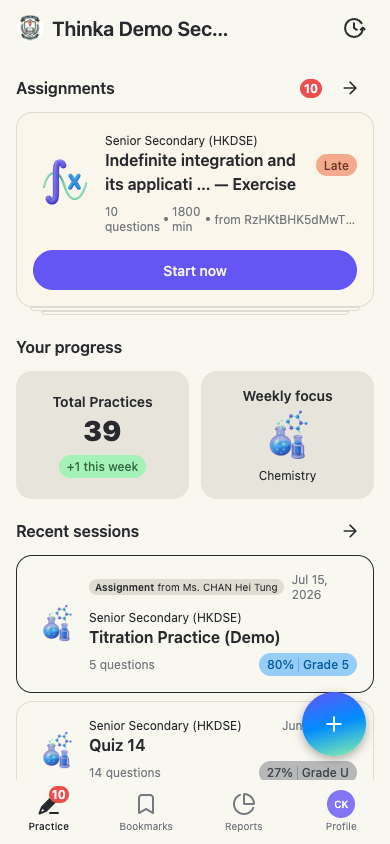
Launched from the home screen, thinka opens full-screen (no browser bars) with bottom-tab navigation designed for phones.
Section 4
Language & theme
Change language and theme
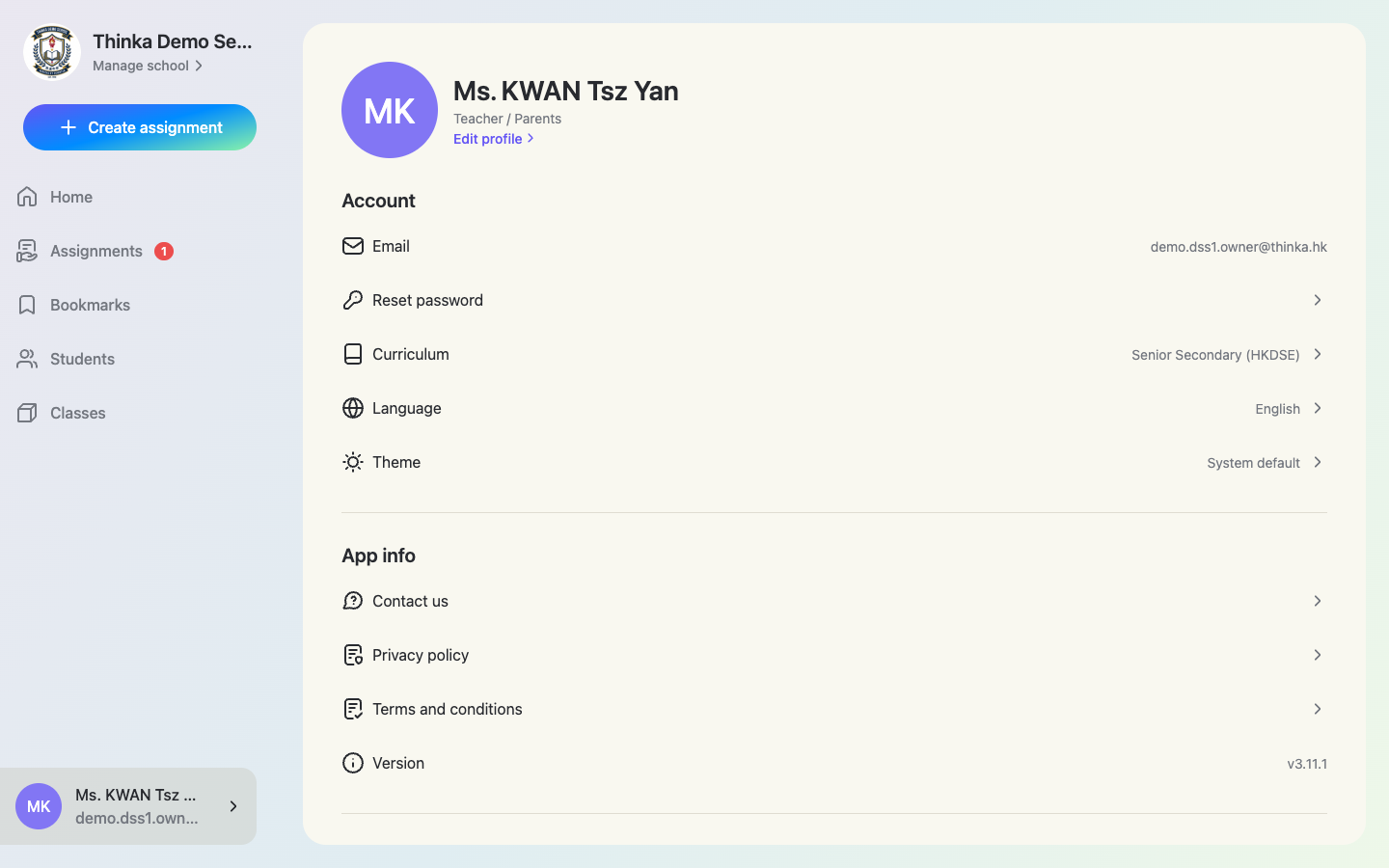
Before signing in, use the language button in the top-right corner of the sign-in page. After signing in, open your profile to change Language (English / 繁體中文 / 日本語 / ไทย) and Theme (light / dark / system).
Section 5
Troubleshooting / FAQ
“Incorrect email” on the school domain
Only school members can sign in on the school's own domain. Ask your school admin to add your email (Manage users → Invite), or sign in at app.thinka.ai instead.
A teacher can't see a colleague's assignment
Teachers see their own assignments plus assignments in their assigned subjects. Ask an admin to check the teacher's subjects in Manage users → Teachers.
The dashboard shows fewer items than expected
Check the time range — the default “Current school year” follows the dates in School profile, so work created outside that window (e.g. during summer) is hidden. Switch to “Last 7 / 30 days” or a custom range.
A student can't see an assignment
Make sure the assignment was published and the student was in the assigned list. Teachers can add students afterwards with + Assign more on the assignment page.
Signed in but landed in the wrong workspace
Use Switch account at the bottom of the sidebar (on app.thinka.ai). On a school domain you are always in that school's workspace.
Forgot password
Use Forgot Password? on the password step to receive a reset email, or ask a school admin to set a new password for accounts the school created.